This article will explain how to configure your Vitals Customer Portal to require that users ask for approval when changing Room Rates to a value below Market Rate. This content is intended for those with Administrative level access.
Security
There are two security template id's that come into play to configure this feature.
Ability to approve below Market Room Rates - This setting enables the Room Rate Approval menu item under Manage Communities. Security groups and users that are granted access to this feature will be able to review any pending below market room rate change requests, approve or deny them, and see all history. The template id value for this feature is 5078. Change this setting to 1 to allow access to the Room Rate Approval menu item.
Require approval to set Room Rate below Market Rate - This setting will prompt the user to submit a request for room rate change approval if attempting to set a value below market rate.
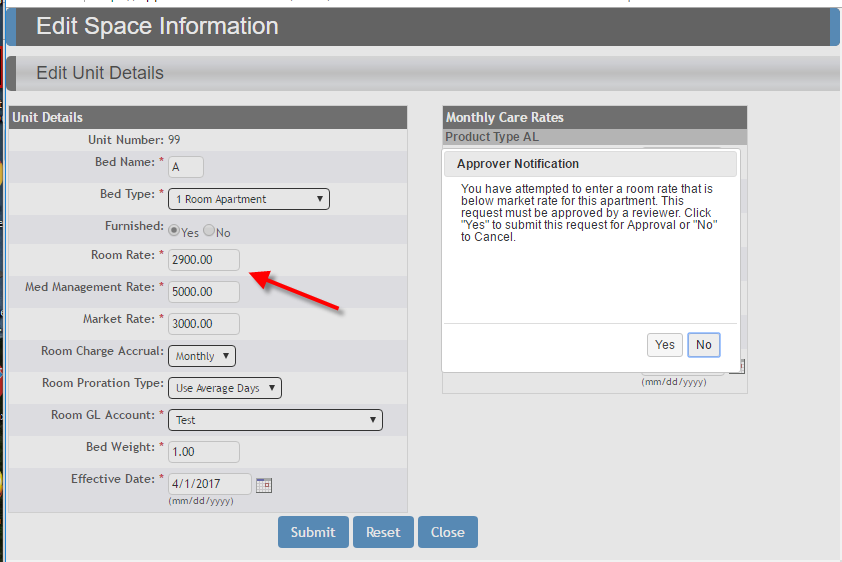
The template id value for this feature 5082. Change this setting to 1 to require that security groups and users submit below market room rate changes for approval. When this template is set to 0 for a security group, the users in that group can make any room rate changes unrestricted and there is no notification sent regarding these changes. To prevent users from changing market rates refer to security template id 2741(Alter Market Rate from Occ popup).
Email notification - Pending Room Rate Approval Request
When a below market room rate change request is initiated an email will be sent to those email addresses configured in the management screen. The subject of the email will be "Updating Room Rate Approval Request". The body of the email will contain the building name, resident name, unit/bed, requested room rate, and the current market rate.

Room Rate Approval Management Screen
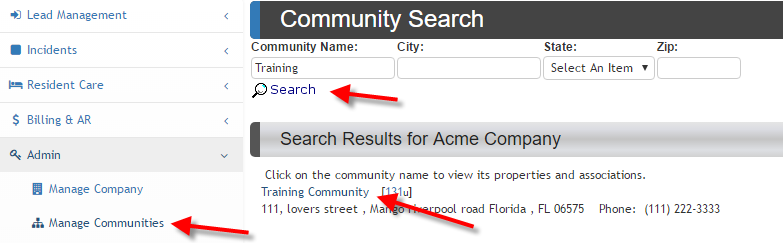
In the left navigator select Admin/Manage Communities. Search for community and select from the Search Results.
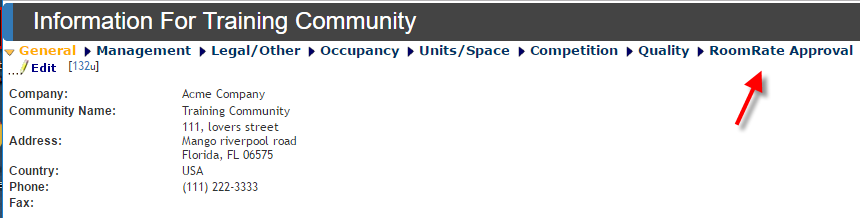
Select Room Rate Approval from the top menu.
On this page users will be able to see all detail regarding Pending Approval Requests. They will be able to Approve or Deny them upon review.
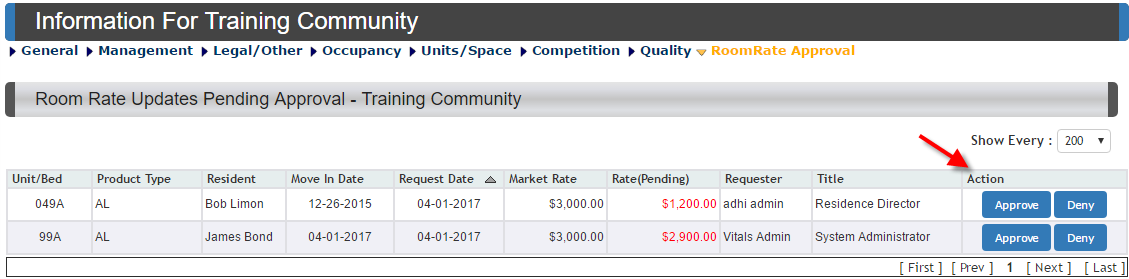
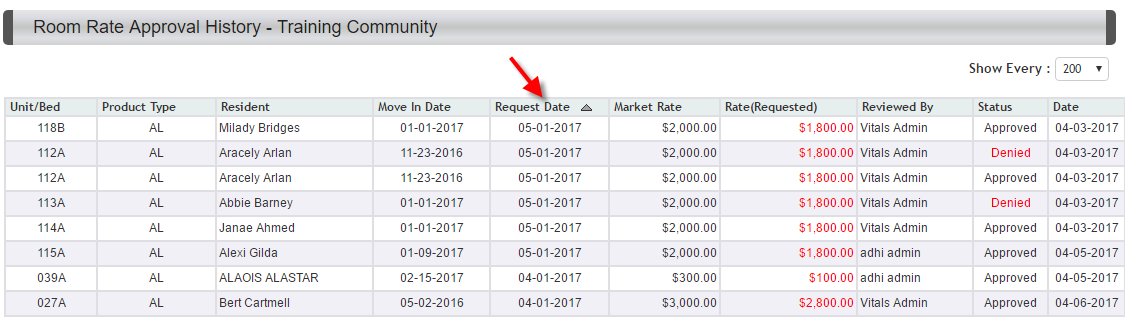
History of room change requests are displayed. The data grid can be sorted on any column by clicking on the column header. Descending order by date is the default sort.
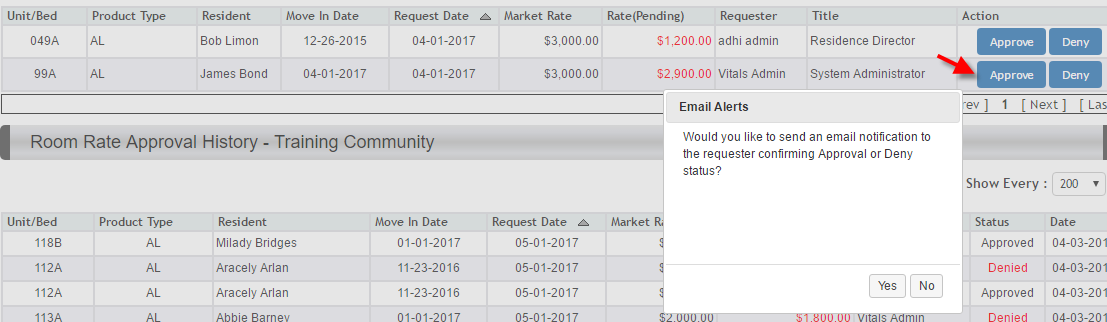
When Approve or Deny is selected the user is presented with the option of sending an email confirmation to the requester confirming Approve or Deny status.
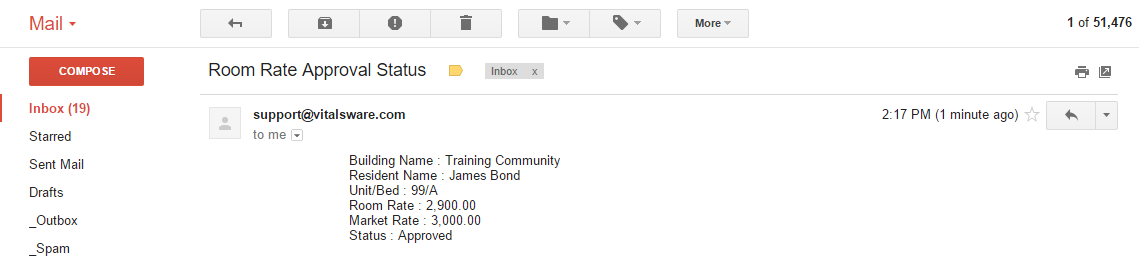
The email sent to the requester will have the subject "Room Rate Approval Status" along with building name, resident name, unit/bed, requested room rate, current market rate, and status(approved or denied).
Configure Email Alerts for Reviewers
The email alerts configuration box for reviewers is located at the bottom of the Room Rate Approval page. Enter email addresses of individuals designated to review room rate changes for the community. Separate multiple email addresses with a comma. Click Save button when finished. Any email addresses listed here will receive Pending Room Rate Change notifications for the community.
Was this article helpful?
That’s Great!
Thank you for your feedback
Sorry! We couldn't be helpful
Thank you for your feedback
Feedback sent
We appreciate your effort and will try to fix the article