Contents
When Vitals does not appear to be saving information or saves it inconsistently it is because the Browser settings on the computer need to be configured for Vitals.
Browser settings must be correct for each computer you use and for each Browser you use. (If you have extra toolbars added to your browser you may need to also configure the toolbar to allow popups for [*,]vitalsware.com (or https://app2.vitalsware.com, https://app3.vitalsware.com https://gen3.vitalsware.com. If you do not know how to configure your toolbar please contact your IT department or consultant)
Our reports rely on the newest version of Adobe Reader being downloaded on your computer in addition you need to configure the browser(s) that you use for Vitals.
Chrome Settings
Your browser needs to allow popups from Vitals.
This document will explain how to change the basic settings in Chrome but if you have added additional tools in your browser you may need to configure them to allow Popups from [*.]vitalsware.com[ too. (If the browser settings must be more specific use https://app2.vitalsware.com and https://app3.vitalsware.com and https://gen3.vitalsware.com)
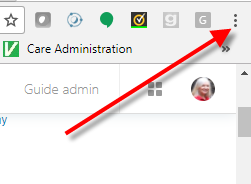
- Click the three dots in the upper right hand side of Chrome
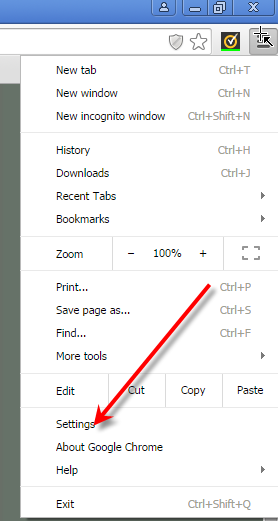
- Click Settings
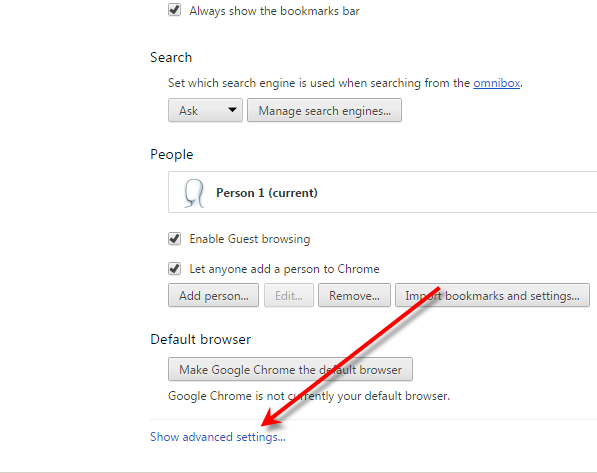
- Click Show Advanced Settings (You may need to scroll down to the bottom of your screen)
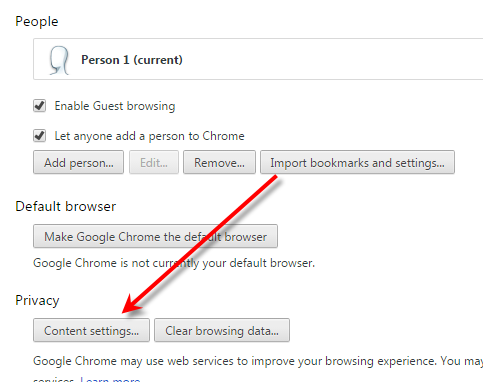
- Click Content Settings
- Scroll down until you can see Pop-ups, click Manage exception…
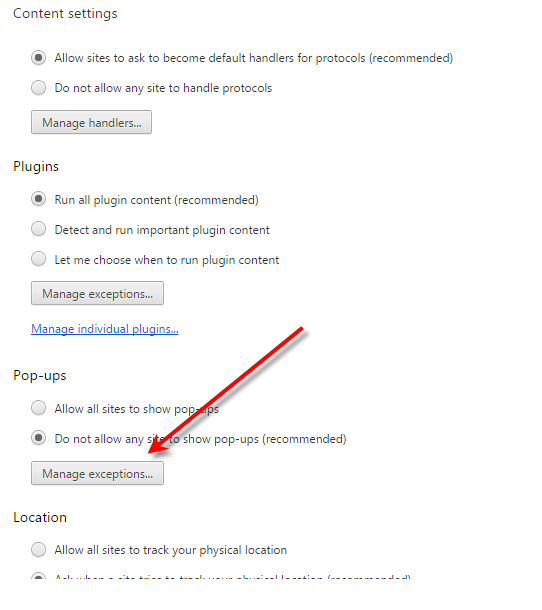
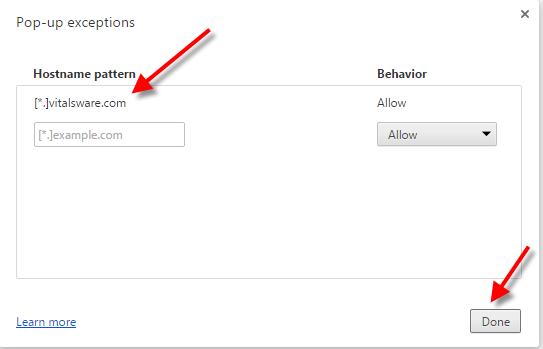
- Enter [*.] vitalsware.com or ( https://app2.vitalsware.com then https://app3.vitalsware.com then https://gen3.vitalsware.com ) select Allow, click Done
Edge
Edge needs to be configured to allow pop-ups.
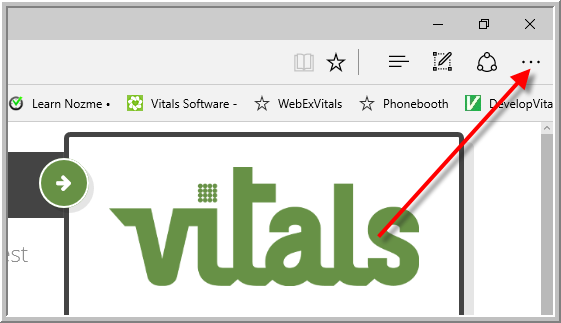
- Click More
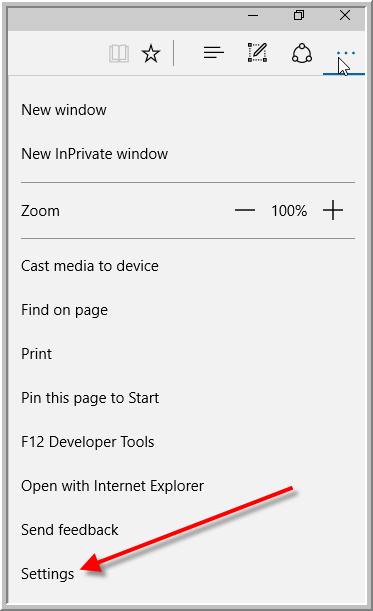
- Click Settings
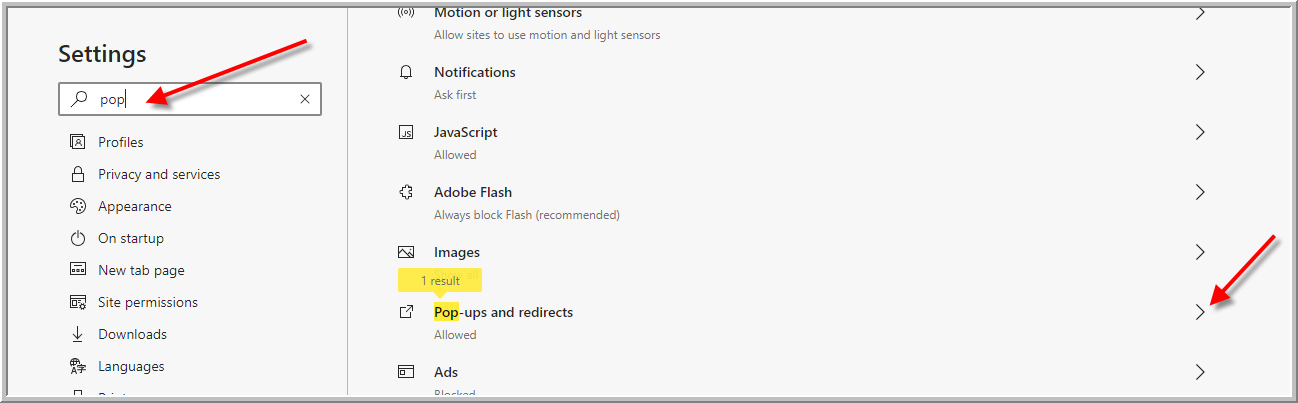
- Type pop click right arrow
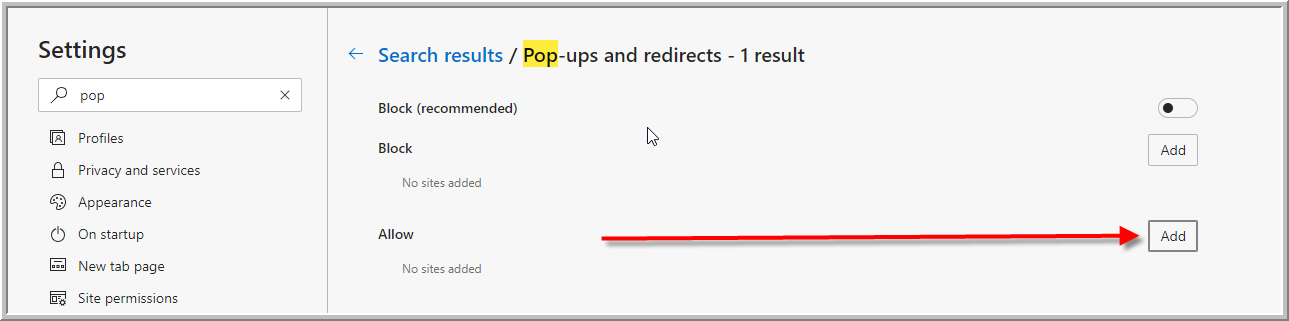
- Click Add
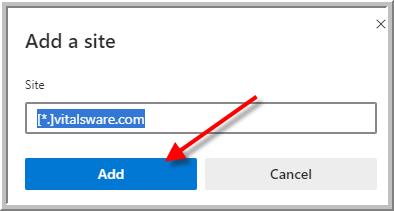
- Enter [*.]vitalsware.com click Add
Internet Explorer Settings
Note: Internet Explorer will not work with Incident Tracking module and some other areas of vitals with modern coding. Incident Tracking module and some other functionality requires a more modern browser.
Computers that have never used Vitals need these settings to be fixed and sometimes (rarely) when there is a Windows update the settings need to be fixed again. You will have problems with reports and entering data if you do not fix your settings or use the correct version of Internet Explorer.
Steps to Configure Internet Explorer Settings
First you need to use a non 64 bit version of Internet Explorer. If you click start button and do not see Internet Explorer 64 bit your version is correct.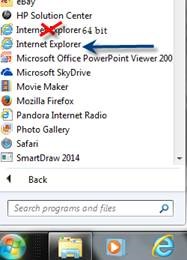
Fix your pop-up blockers to allow pop-ups from *.vitalsware.com
- Click Tools
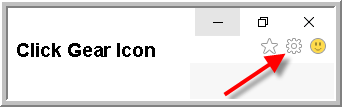
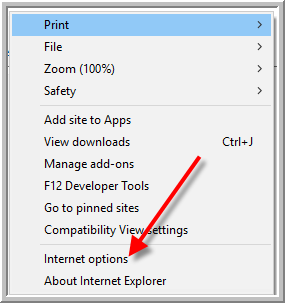
- Click Internet Options
- Click Privacy, if Turn on Pop-up Blocker is clicked, click Settings
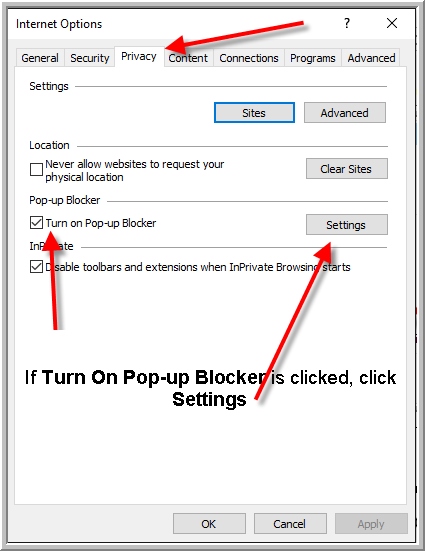 Note: If your pop-up blocker is not turned on go to step 6
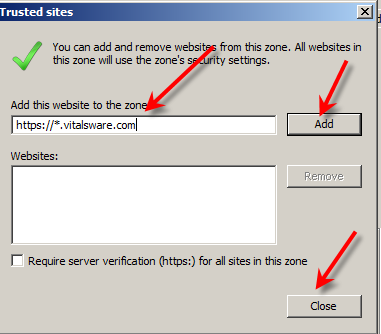
 - Enter https://*.vitalsware.com --> (or https://app2.vitalsware.com then https://app3.vitalsware.com) click Add
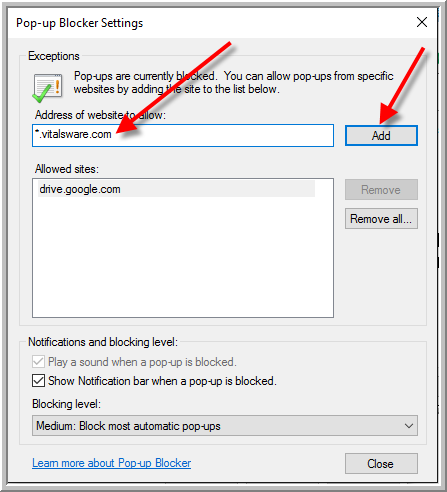
- Click Close
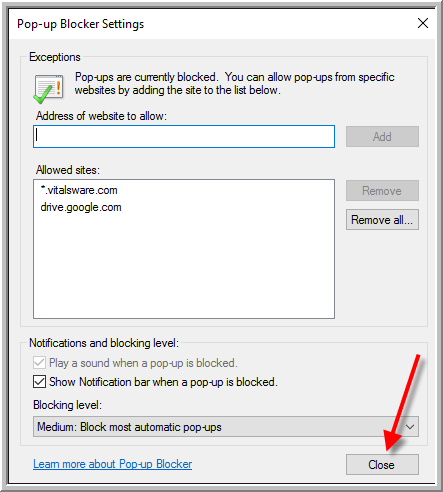
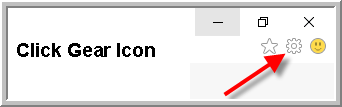
- Click Tools again
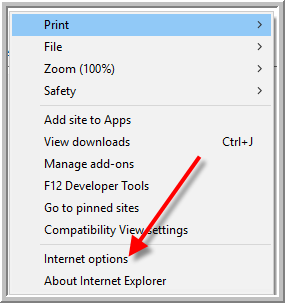
- Click Internet Options
- Click Security-->Trusted Sites-->Sites
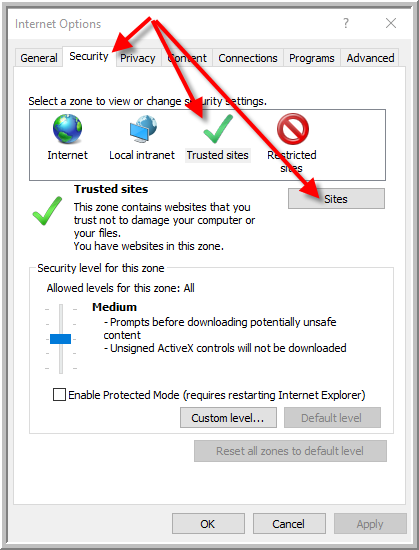
- Enter https://*.vitalsware.com--> (or https://app2.vitalsware.com then https://app3.vitalsware.com) Click Add-->Click Close
Mozilla Firefox Settings
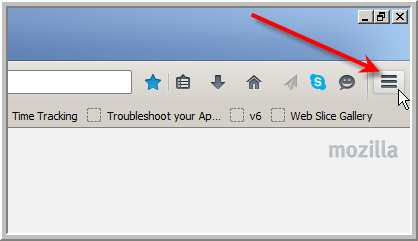
- Click Horizontal Bars icon (Open Menu-located in upper right hand corner of Mozilla Firefox)
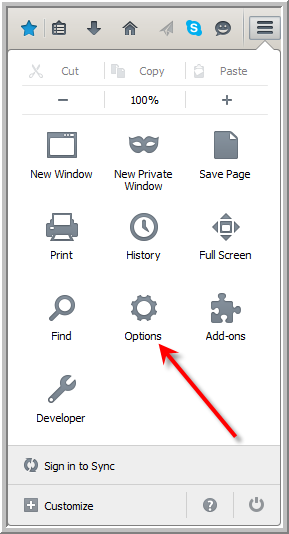
- Click Options
- Click Content tab. If Block pop-up windows is clicked, click Exceptions
(if Block pop-up windows is not clicked, you do not need to make any changes.)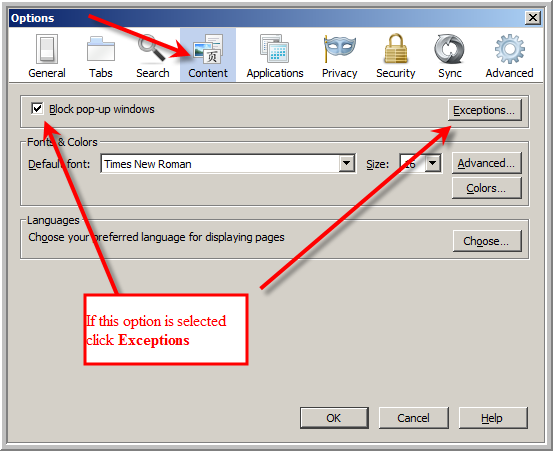
- Enter vitalsware.com then click Allow
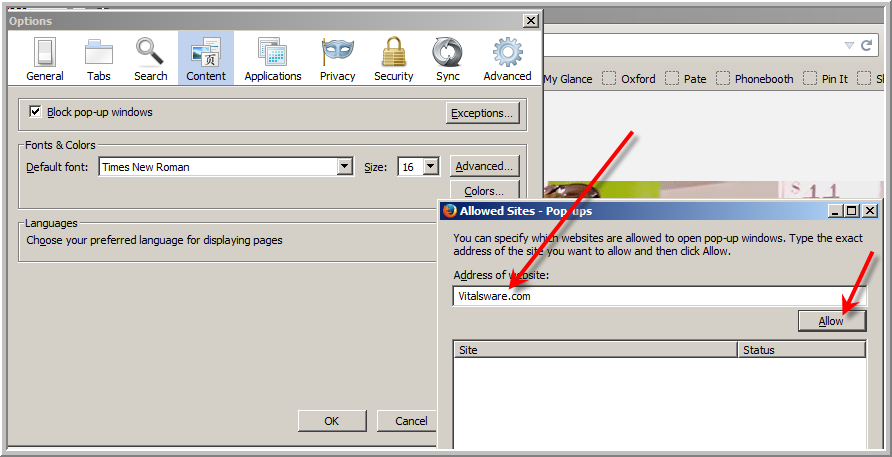
- Close all the setting windows.
Safari Settings
Vitals uses Pop-ups so you must configure Safari to allow Pop Ups.
- Click the gear icon in upper right hand corner. If there is a check adjacent to Block Pop-Up Windows this will cause problems in using Vitals. Do de-select by clicking Block Pop-Up Windows
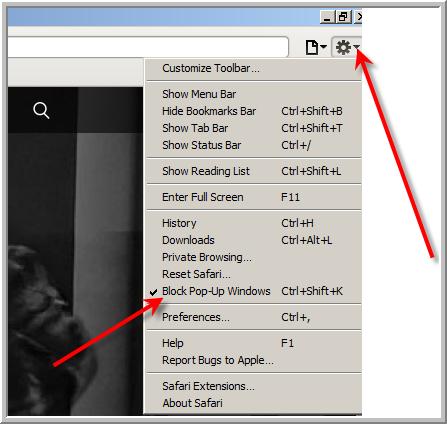
In the above screen shot there is a check adjacent to Block Pop Up Windows. If you click the gear again after deselecting you will see there is not a check adjacent to Block Pop-Up Windows (The goal is to not have a check next to Block Pop-Up Windows)
Was this article helpful?
That’s Great!
Thank you for your feedback
Sorry! We couldn't be helpful
Thank you for your feedback
Feedback sent
We appreciate your effort and will try to fix the article