This article explains how to add an apartment to a community. If you do not have access to add apartments you may need to have someone else in your community that does have access. After creating an apartment; create a bed or beds.
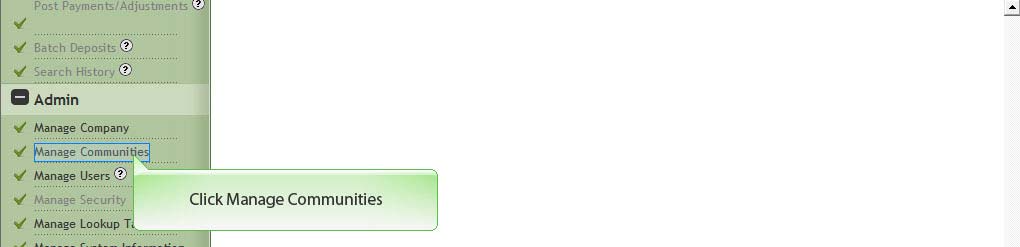
1. Click Manage Communities
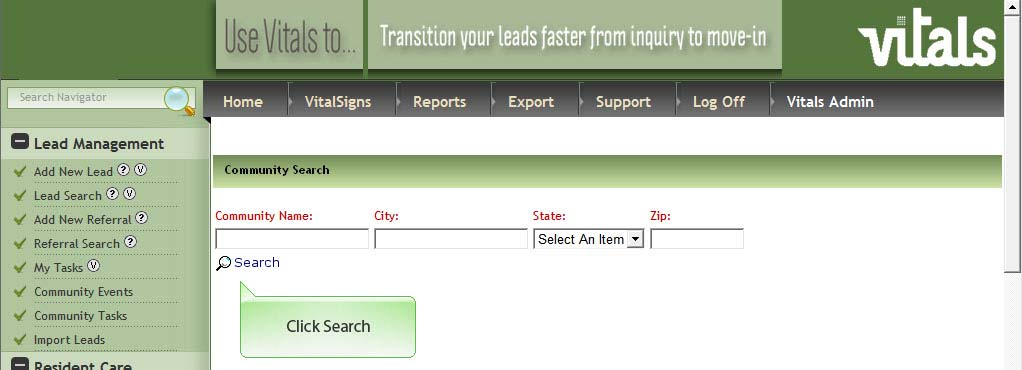
2. Click Search
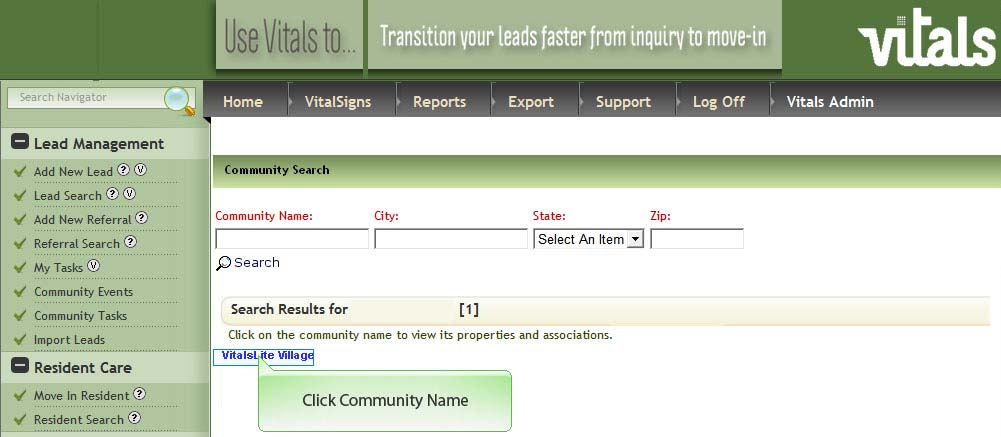
3. Click Community Name
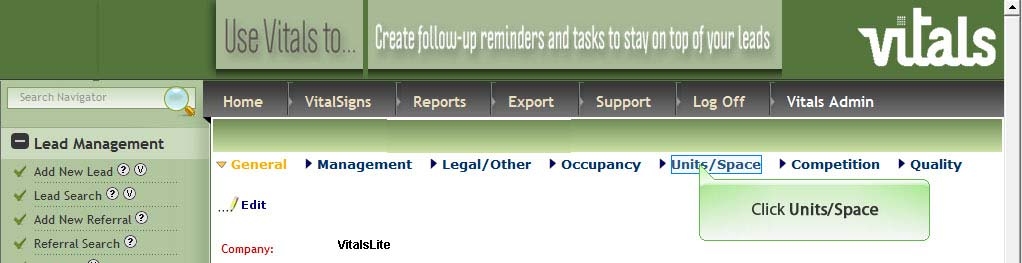
4. Click Units/Space
5. Click Add A Unit
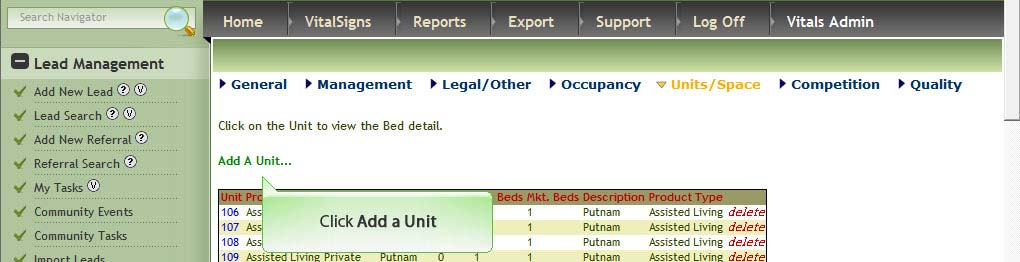
6. Enter data in the fields. Fields with ‘red stars’ are required fields.
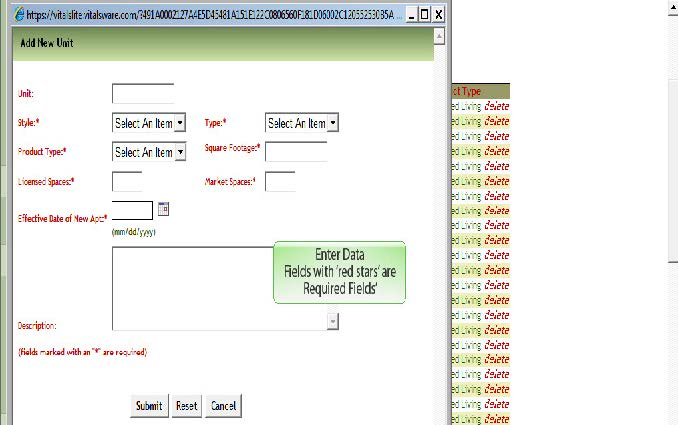
Note: The maximum number of Licensed Spaces and Market Spaces is 3. If you are making a Day Stay bed the recommendation is to use 3 beds.
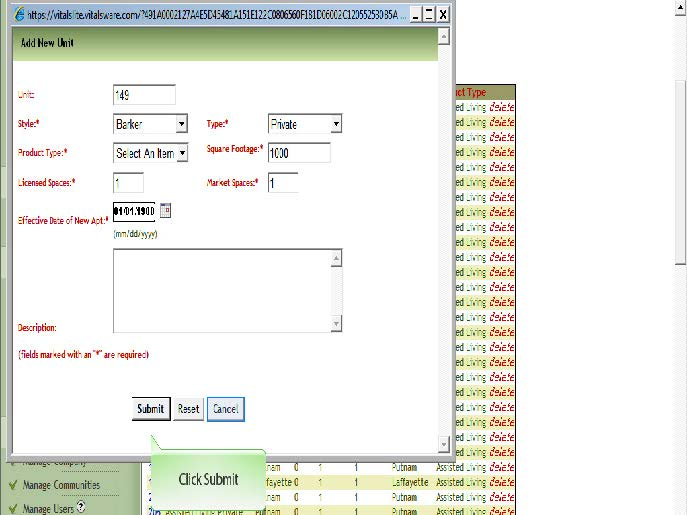
7. Click Submit
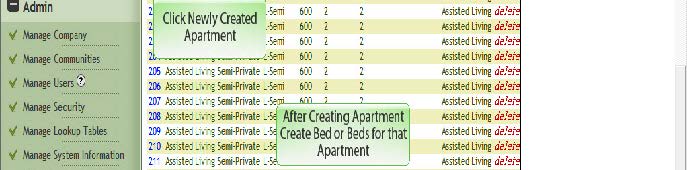
8. Important: You are not finished! After creating apartment, create bed or beds for that apartment. The first step is to click newly created apartment.
9. To add a bed, click Add A Space.
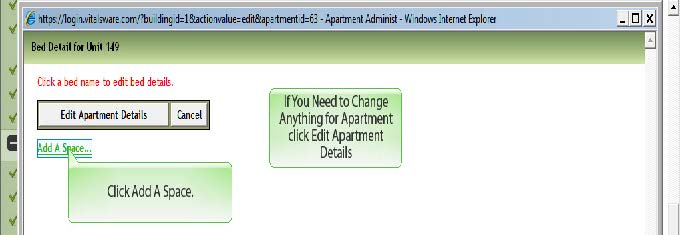
10. Enter data in the fields, click Submit. Note: The typical bed name are A, B, or S. The first bed is an A bed. The second bed is a B bed if the apartment is considered half full if there is only 1 resident. S beds are for apartments that typically only have one person but are shared by a spouse. The apartments with S beds are considered full with 1 or 2 residents. Day beds are typically named X,Y,Z. Bedweight is 1 except for Day Stay beds or Apartments that are rented to non-Residents such as Beauty shops. Day Stay beds and beds rented to non-residents should be setup with bed weight of 0.
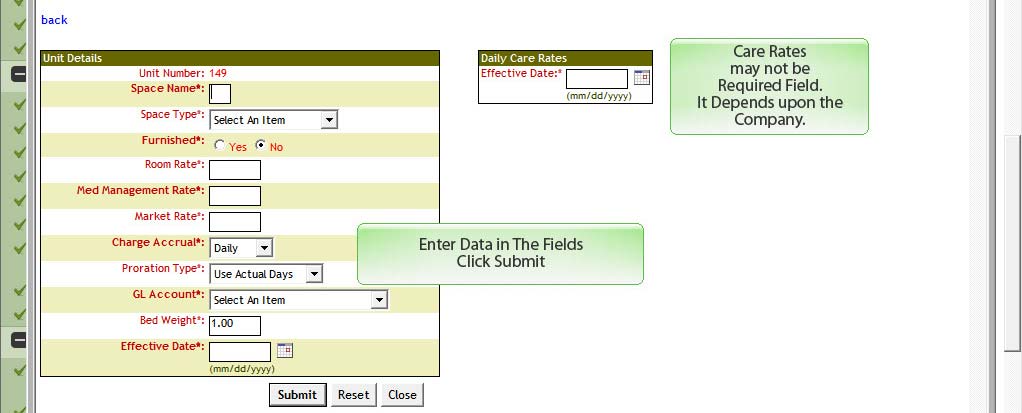
Notes: Care rates may not be required field. It depends upon the company. If the other beds have care rates you should add care rates to the beds that you add. If the apartment has another bed repeat steps 8 through 10.
Was this article helpful?
That’s Great!
Thank you for your feedback
Sorry! We couldn't be helpful
Thank you for your feedback
Feedback sent
We appreciate your effort and will try to fix the article