1 This article explains how to Add a Lead to Vitals. A lead consists of a Prospect and possibly an Influencer (or Influencers). An Influencer is typically a family member that helps their loved one locate a living situation for the Prospect. In Vitals a Referral is a person that helps Prospects find Senior Living communities as part of their employment and they could be connected in Vitals to many unrelated Prospects.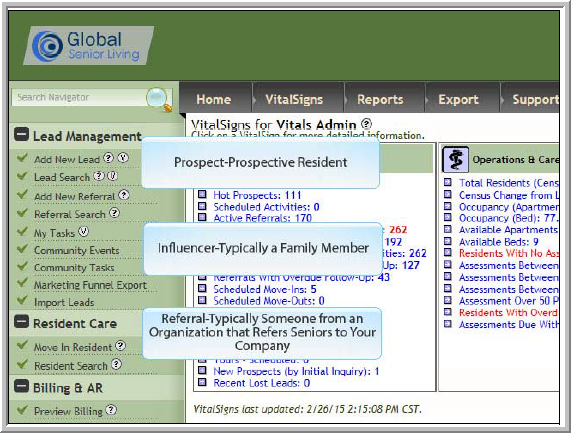
2 Click Add New Lead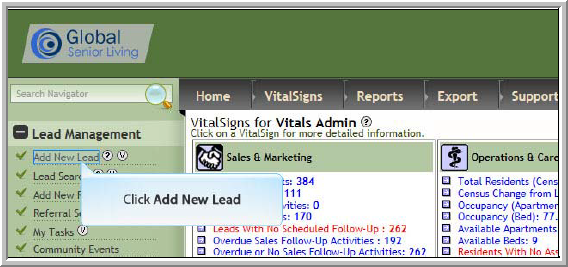
3 Vitals defaults to adding a Prospect and Influencer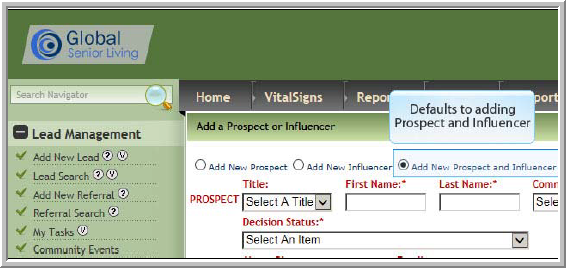
4 If you do not know the name of the Prospect, click Add New Influencer. This Influencer will be automatically attached to a prospect with name of Name Pending. (You will be able to edit the Prospect’s name when name becomes available.)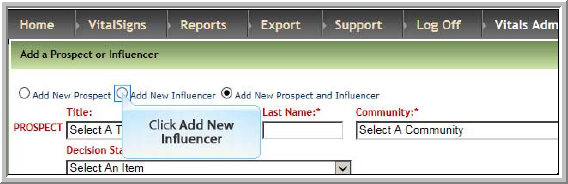
5 If there is not an influencer, click 'Add New Prospect'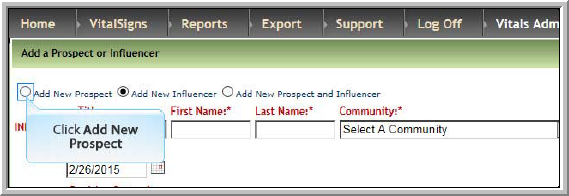
6 Enter data in the fields. Fields with an asterisk are required fields.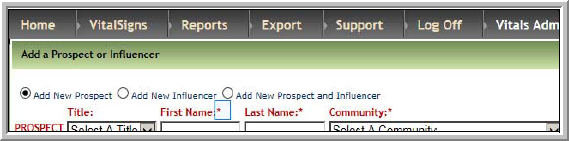
7 Click Save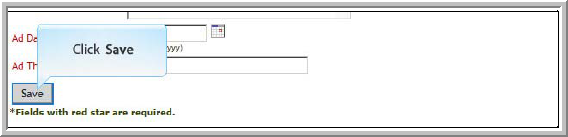
8 If you selected a media source that requires a referral, new mandatory fields may display. (Varies by company) If you selected a media source that does not require a referral you will be provided option of entering a referral. If you do not need to add a referral click Cancel. If you click cancel you will be finished adding the new lead and automatically navigated to the new Prospect’s profile where you can add marketing activities.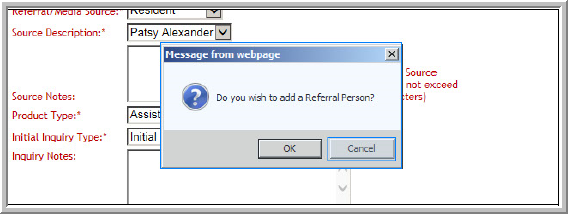
9 If you do need to add a Referral click OK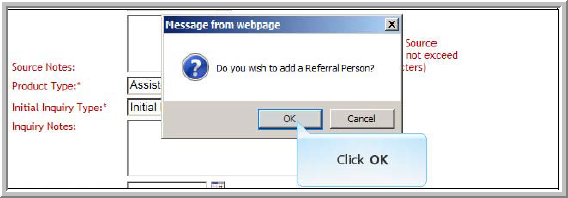
10 Search for a referral to avoid having duplicate referrals in Vitals. Click Click here to search.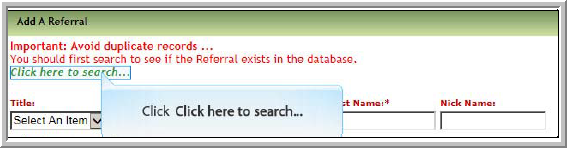
11 We recommend searching by last name or organization.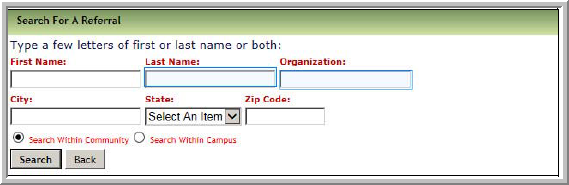
12 It is only necessary to enter the first portion of last name or organization.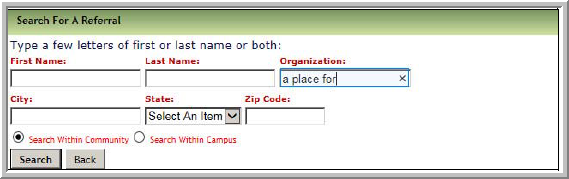
13 Click Search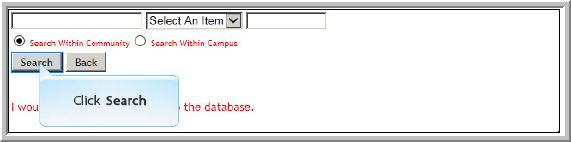
14 If the correct name displays, click the Name otherwise click Add a Referral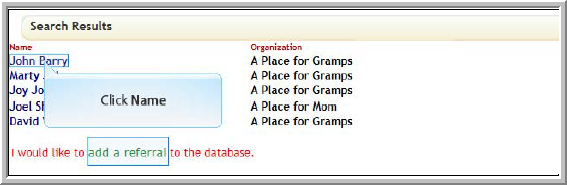
15 For the purposes of this document John Barry’s name was clicked in previous step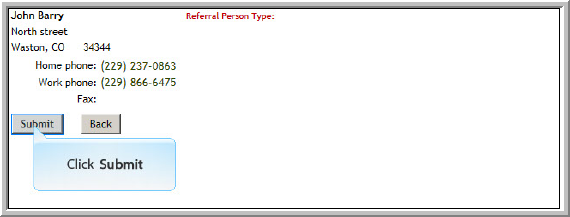
16 Prospect’s profile displays for the new lead.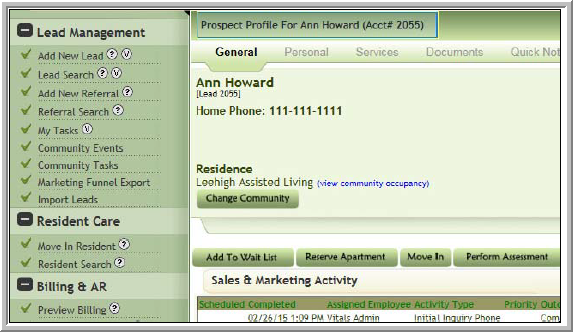
Was this article helpful?
That’s Great!
Thank you for your feedback
Sorry! We couldn't be helpful
Thank you for your feedback
Feedback sent
We appreciate your effort and will try to fix the article