Payments and Adjustments Best Practices
1. Select the Payments/Adjustments tab and enter the resident’s name that you would like to post the payment for. If you are posting multiple payments you may prefer to just select “All Residents” in your search.
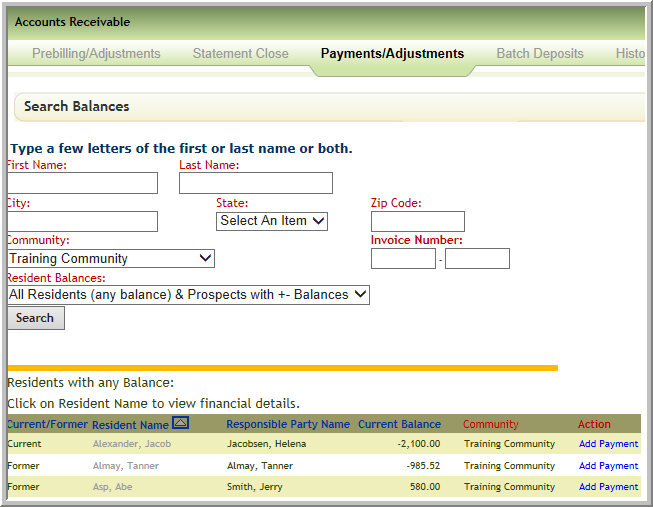
2. It is recommended that when you are first learning to post payments in Vitals that you start by selecting the resident’s name that is highlighted in blue. This will allow you to see the individual charges that you would like to post their payment against. Once you become more familiar with the intuitive way that Vitals automatically applies payments, you can select the “apply payment” option and let the software do the work for you.
NOTE: You will notice that even though you have created your current month’s invoices and as well as created the next month’s “pre-billing worksheet”, the payment screen is still in your current financial period waiting to have payments posted and any additional ancillary charges that may have occurred during the current financial period. Another nice feature in Vitals is that the invoice number along with the invoice date appears in the “add charge/adjustment” field which will allow you to confirm what financial period you are posting the charge in.
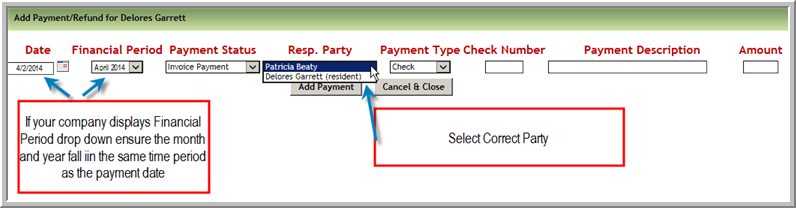
3. You are now ready to enter your payment. Select the “Add a new Payment/Adjustment” box. It is very important that you make sure you are selecting a payment date that falls within the current financial period before you “submit” your payment.
Ensure that the payments are made by the person that has been charged. If you apply payments to the resident when the charges were against the responsible party your invoices will be incorrect.
4. By selecting “submit” payment, you will be prompted to either add your payment as a “pre-payment” or “finalize the invoice”. It is recommended that at this point you “finalize” the invoice unless you are still waiting for additional payments and/or ancillary charges to come in that need to be applied to the current financial period. Note: This is only “finalizing” the one resident’s invoice. All other resident’s invoices will still need to be finalized before doing a “hard close”.
5. NSF (Non Sufficient Funds) is a special type of payment. It is selectable in the payment type dropdown. It is used to reverse the amount of an existing payment. You would enter the payment in the post payments area using the amount, responsible party, and check number of the original payment.
NOTE: It is very important that the amount, responsible party, and check number fields match the original payment! A/R Aging reports may not reflect accurately if this is not the case.
Was this article helpful?
That’s Great!
Thank you for your feedback
Sorry! We couldn't be helpful
Thank you for your feedback
Feedback sent
We appreciate your effort and will try to fix the article