Introduction
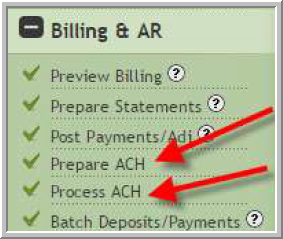
Some companies are using our ACH Module in Vitals. You will know if you have the module because you will be able view Prepare ACH and Process ACH in Billing. If you don't have the module you can still enter ACH payments per this article How do I enter ACH payments?
⦁ You will enter ACH bank account information in the Resident Profile.
⦁ Then you will typically manage most ACH payment information in Billing & AR at:
⦁ Prepare ACH
⦁ Process ACH
Add ACH Bank Information for each resident under Profile/ACH tab
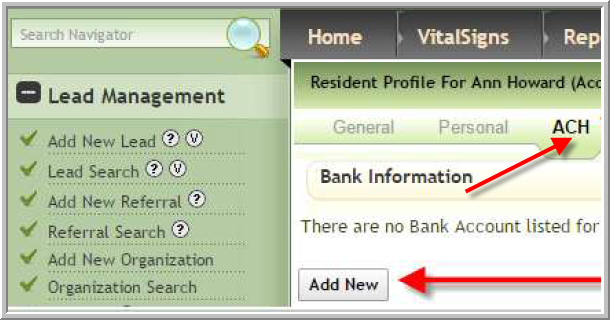
- Access Resident Profile
- Click ACH
- Click Add New
- Enter the information for the correct responsible party, then click Save. (Repeat this
process for any other parties that use ACH payments for this resident.)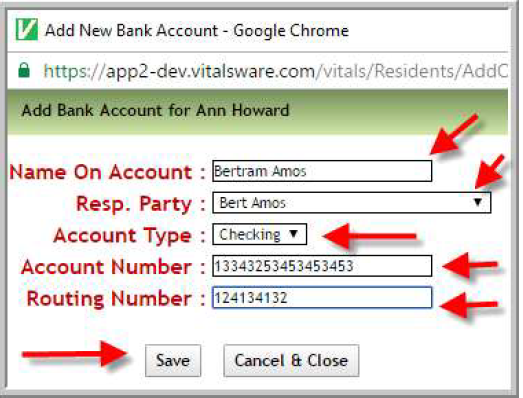
Prepare ACH Transactions
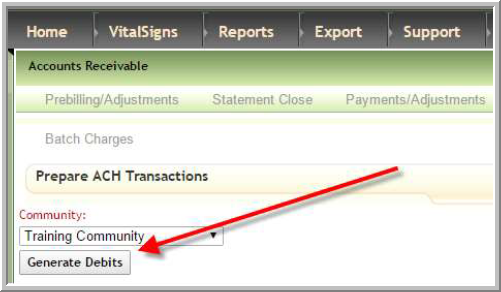
- Click Prepare ACH
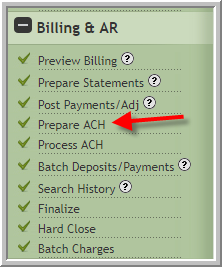
- Click Generate Debits (to display residents and balances)
- Click Pay Full or enter individual amounts for each resident
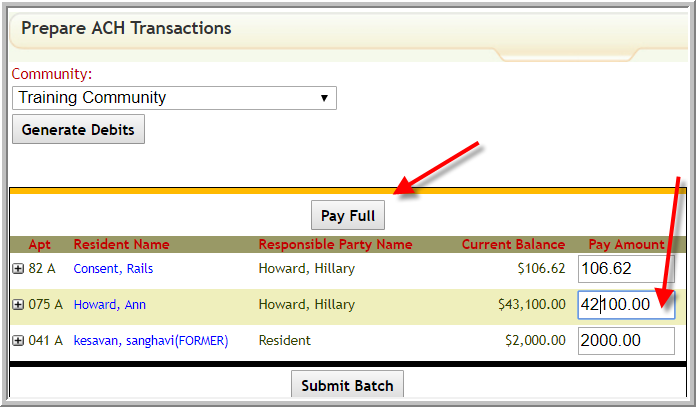
- Click Submit Batch

Process ACH
- Click Batch Number to view/edit information about an ACH Batch
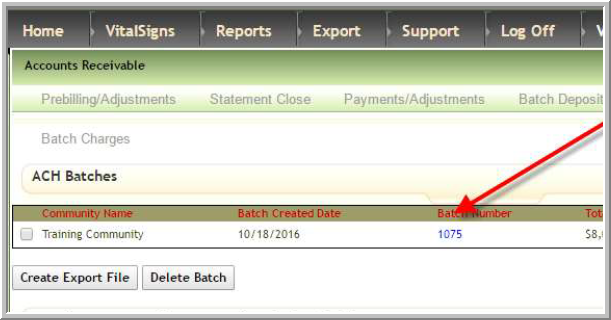
- You can edit or delete items in a batch. Click Batch Number to edit payment amount(s)
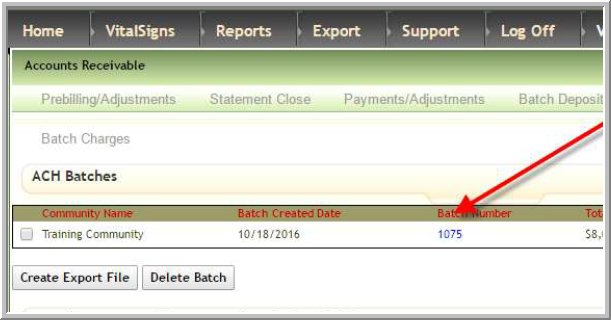
- If you need to delete an entire batch file you can do so by selecting the batch and
clicking Delete Batch
- Once you are satisfied the batch is correct, select Batch(es) and click Create Export File to use for upload to bank

- The export file is automatically named (change name if you need to), click Export
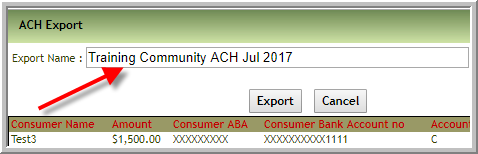
- Send file to bank
- After the bank responds to your file, click green text Reconcile.

- Mark any transactions that the bank could not process as Failure, click Reconcile
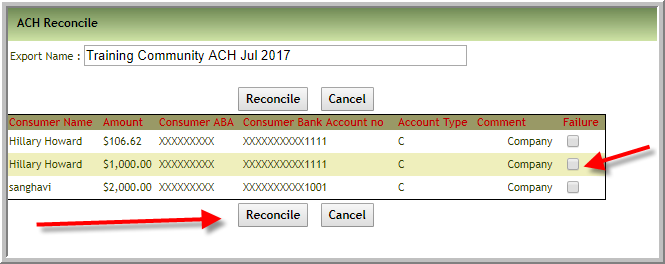
⦁ The ACH marked as Failure does not display in Post Payments.⦁ The payments that were not failures do display in Post Payments
⦁ If you need to view previous downloads you can do so at Process ACH, select Month
and Year, click Search, click Download.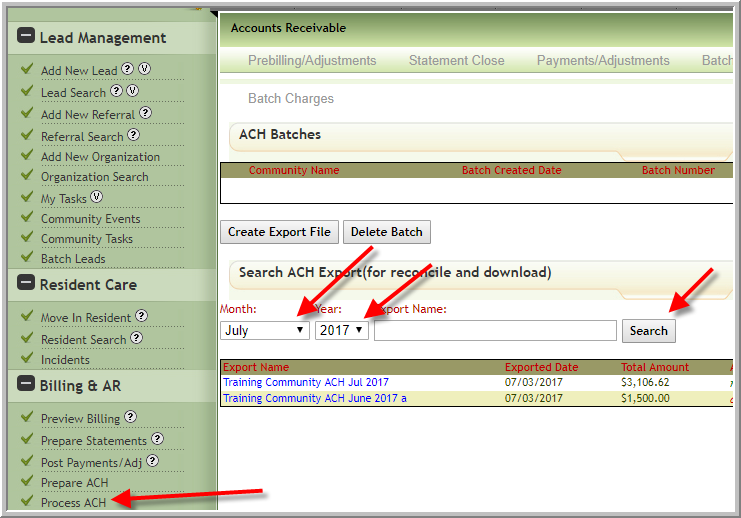
Was this article helpful?
That’s Great!
Thank you for your feedback
Sorry! We couldn't be helpful
Thank you for your feedback
Feedback sent
We appreciate your effort and will try to fix the article