This involves making change to a lookup table.
Ideally one person, the Vitals Administrator, at a company will be responsible for updating lookup tables within Vitals because there are some concepts that need to be applied to any lookup table. Some people may not be adept at understanding the consequences of making changes to lookup tables and could cause problems for your company. The Vitals Administrator is encouraged to talk with subject matter experts at your company before making changes that can be controversial.
1. Never change the meaning of an existing item in lookup table. If you do, all of the employees with that option selected in the past will display incorrect information.
2. Avoid having duplicate options that mean the same thing. For example don't have option of BOM and Business Office Manager. One reason is that if you ever needed to look up all the employees that have a certain one title you have made the job more difficult because you will need to search for records for BOM and Business Office Manager.
The above concepts apply to all look up tables but there are some lookup tables that are more complicated and require more specific information.
The steps to add Employee Titles to Vitals are:
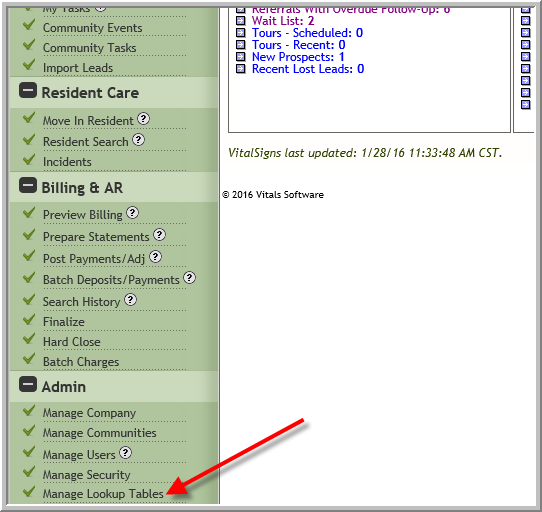
- Click Manage Lookup Tables
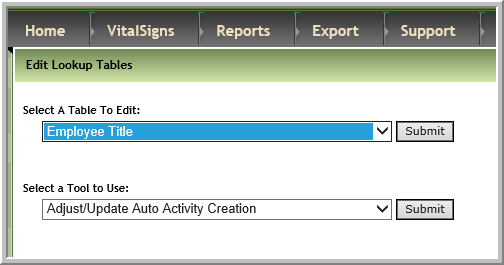
- Select Employee Title
- To change an existing option click the checkbox adjacent to the option, make changes as needed then click Update
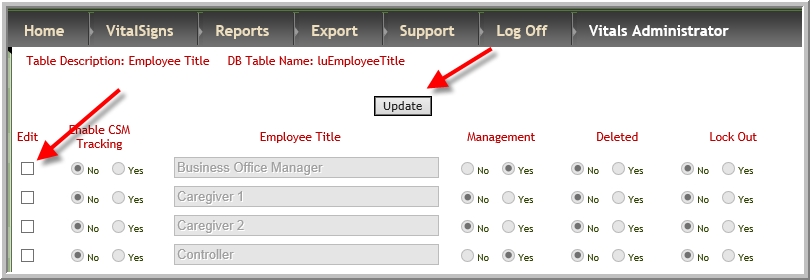
- To add a new option scroll to the bottom of the screen enter the information and click Update.
 Enable CSM Tracking is obsolete category. You can indicate if title is for management. It is unlikely you will add a brand new option and set it to deleted but deleted is an option in the area for updating too. Click Yes under Deleted to suppress options from future use. Any existing employees that have the old option should be revised with a new title. Lock Out is an option you can select in look up tables to indicate that the option should be carefully considered before making any changes.
(Note: Typically leave 'lock out' as No except on the GL Account Information table. When No is selected on the GL Account Information table users will not be able to edit a charge once it is added to Prebill.)
Was this article helpful?
That’s Great!
Thank you for your feedback
Sorry! We couldn't be helpful
Thank you for your feedback
Feedback sent
We appreciate your effort and will try to fix the article