This is a task that typically the Vitals Administrator at your company will handle. If you are not the Vitals Administrator please talk with your Vitals Administrator before making any changes in this area of Vitals.
When each employee / user in Vitals is setup they are assigned to a Vitals Security Group. Each user in that group typically has access to the same functions as all other users in that group. (New! 9/2017 If you need to give an individual unique access to a function/feature you can do so as this article explains later)
How to Determine Users Current Access
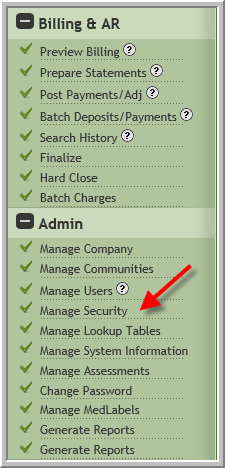
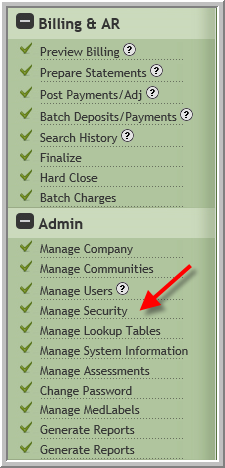
- Click Manage Security
- Click Get Security
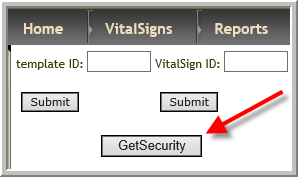
- Open the CSV document. (Recommendation: Save as Excel spreadsheet)
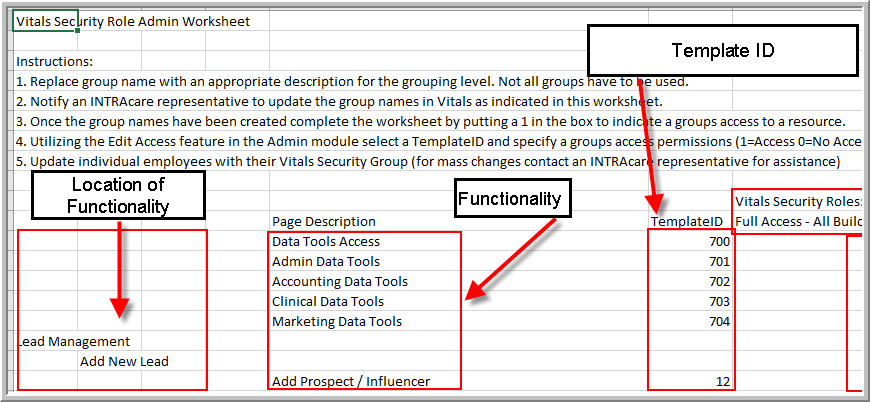
- The left side of the spreadsheet frequently indicates the location of the functionality. The Page Description describes the functionality that can be turned on or off. The Template ID is the number that corresponds to the functionality that you will turn on or off as needed.
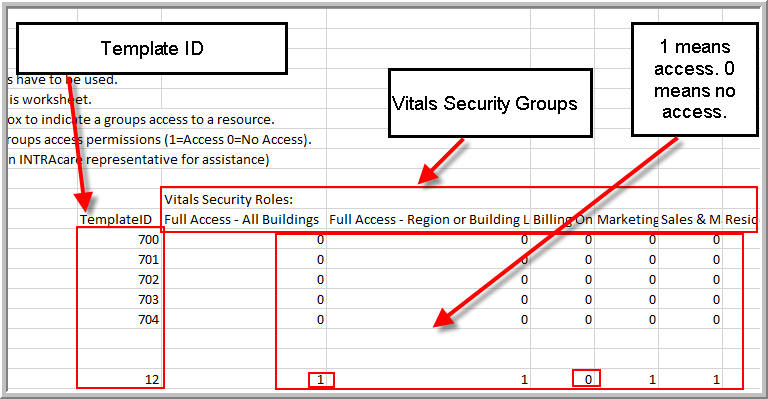
- Next there are columns for each security group. Each cell below that security group indicates if that security group has access or not. If there is a 0 adjacent to the page description for a security group that security group does not have access to that functionality. If there is a 1 that security group does have access. For example in the screenshot below, the users with Full Access-All Buildings have access to Add Prospect / Influencer but the users with Billing Only access do not have access to Add Prospect / Influencer.
Steps to Turn Access On or Off
- In the screenshot below it shows that all groups have access to display SSN for prospects and influencers (Expand the view to see the functionality location for prospects and influencers)

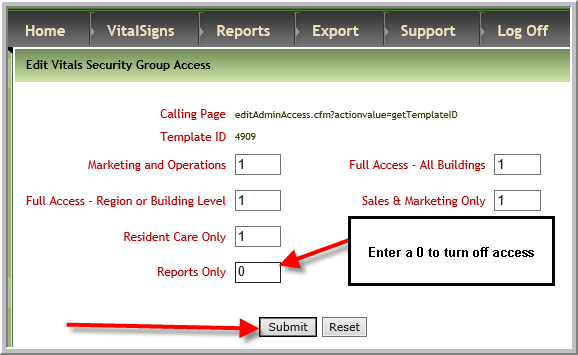
- To turn off or on the display of SSN for an influencer use the template id corresponding to the page description of '4909'. Currently Report Only security group has this security access turned on so the SSN does display.

- Click Manage Security
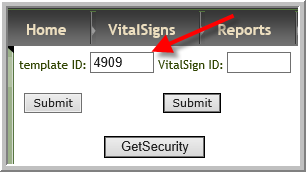
- Enter the Template ID in the template ID field, click Submit
- Enter 0 for the security group(s) that should not have access or enter 1 for the security group(s) that should have access. In this case it was only necessary to change Reports Only to 0
- Create or use a test user ensure that it has the security group that you have changed. In the above example, the security group would be Report Only. Login as that test user and test that the security change that you intended took place.
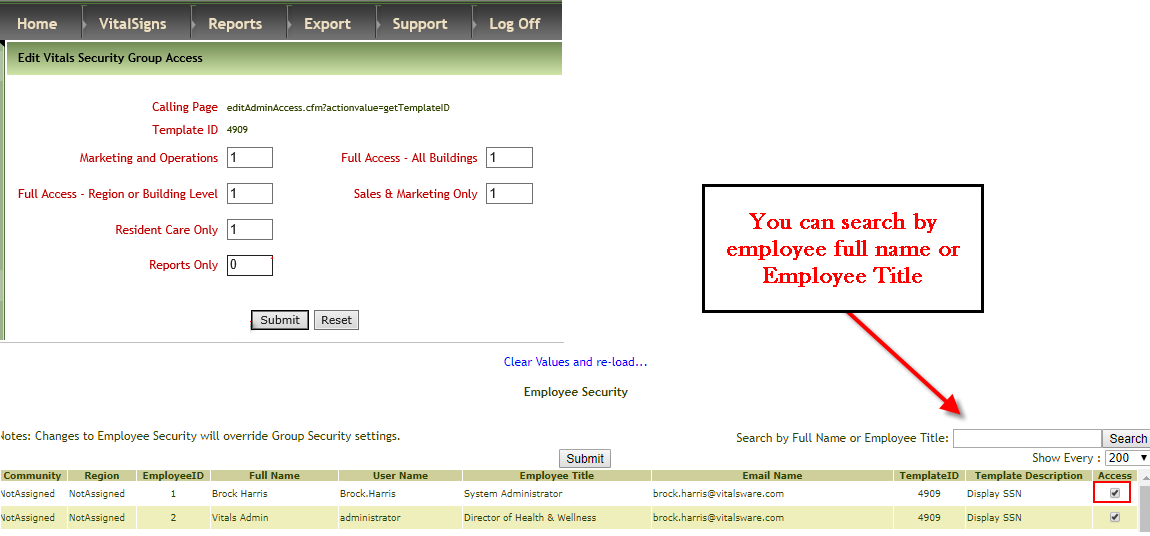
- New as of 9/2017! When you are updating a template ID as shown above you will see list of employees you can select a particular employee and give access or take it away if their group has access and for some reason you don't want a user in that group to have access.
Was this article helpful?
That’s Great!
Thank you for your feedback
Sorry! We couldn't be helpful
Thank you for your feedback
Feedback sent
We appreciate your effort and will try to fix the article