The users complete assessments on the services tab on resident/prospect profiles. However, the assessment tool has to be created first. This article explains the basics on how to create assessment tool.
Typically the Vitals Administrator or a designated employee in your company will be responsible for creating/maintaining Vitals assessments. This article presumes you have the access to manage assessment tools. But keep in mind it is possible you have access but should not be creating/editing assessment tool.
Changing an existing assessment or creating a new assessment may require development for report changes.
The steps to create a new assessment are:
- Click Manage Assessments
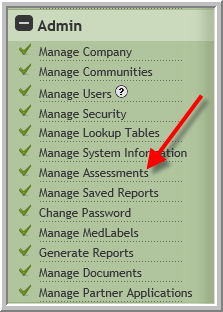
- After clicking Add New Type , enter the name of the assessment.
Click Billable if the assessment will be used to charge the resident or if you need the Next Assessment Due Date to be available on VitalSign report. Only 1 assessment type per building should be classified as billing. Typically, click Services for location. (This option can be changed later)
Comment options: The option selected here will determine the type of comments the user will enter whenever comments are necessary for questions throughout the entire assessment.
Typically it is best to select No Enhanced Comments, use Extended Comments or use Extended Goals.
Click the following link to read more about determining which type of comments to use in your assessment.
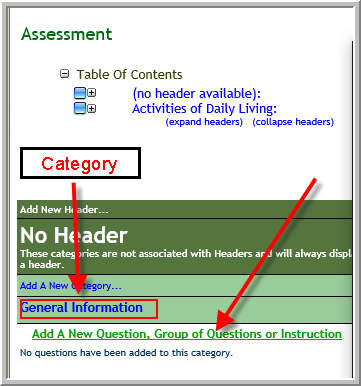
Comments - You must enter a Category before you can add any questions. You have option of entering a Header. Any Category that does not have a Header will display above all the categories that do have headers.
The steps to add a category without a header are click Add Category, enter the Category, click Add.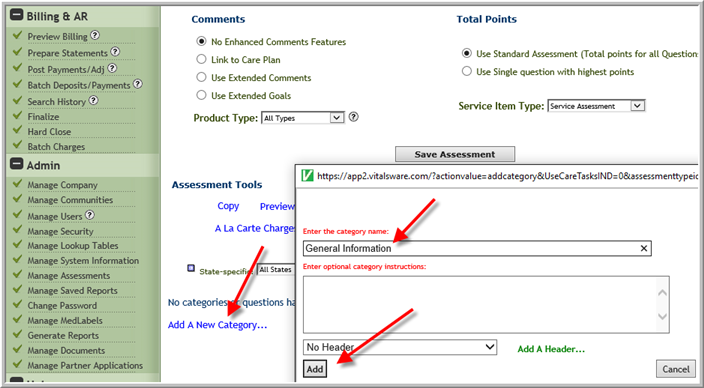 The steps to add a new header to an existing category are: Click Add Header directly above the category that needs header, enter the Header click Submit.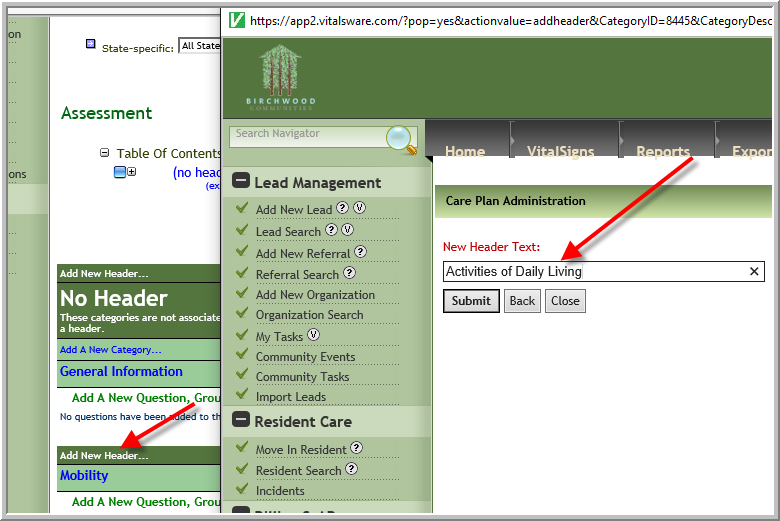
- Steps to add another category to an existing header. Click Add a New Category directly below the header.
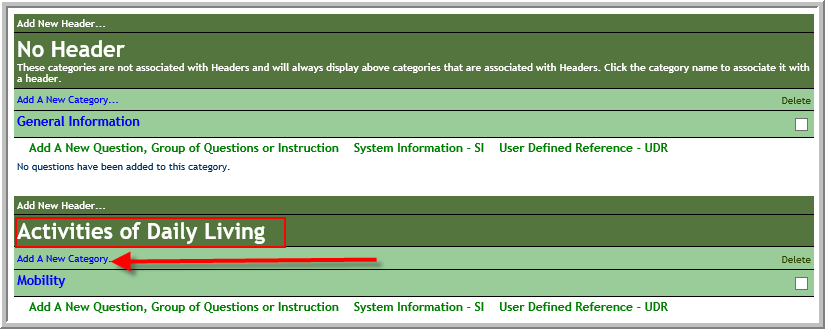
- To add a question to a category ensure you click Add a New Question, Group of Questions or Instruction directly below the category.
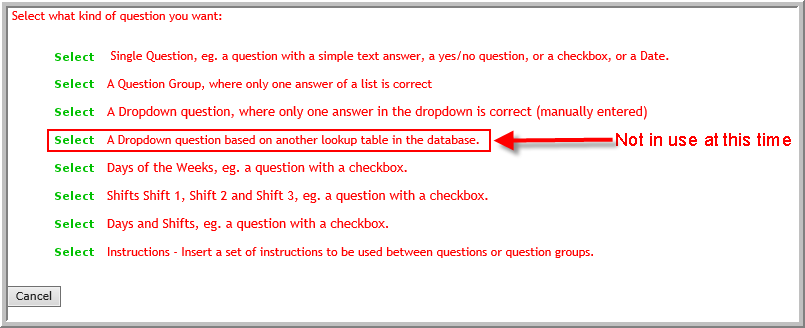
- There are several question types.
Was this article helpful?
That’s Great!
Thank you for your feedback
Sorry! We couldn't be helpful
Thank you for your feedback
Feedback sent
We appreciate your effort and will try to fix the article