Important: These changes effect the entire company. Only make these changes to this table if you have proper authority.
This article explains how to add or remove GL Account options that are available for users to select when they are adding fees or deposits for a prospect that is being added to a Wait List or Reservation. This involves making changes to a lookup table. There are some basic rules that apply to all lookup tables:
- Never change the meaning of an existing item in lookup table. If you do, all of the prospects or residents with that option selected in the past will display incorrect information.
- Avoid adding options duplicate times such as a GL Account named AL-Room and Board and Assisted Living-Room and Board.
The steps to change GL Account options are:
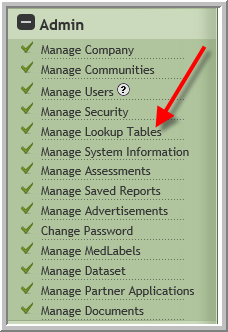
- Click Manage Lookup Tables
- Click the checkbox adjacent to the GL Account Name(s) that you want to change.
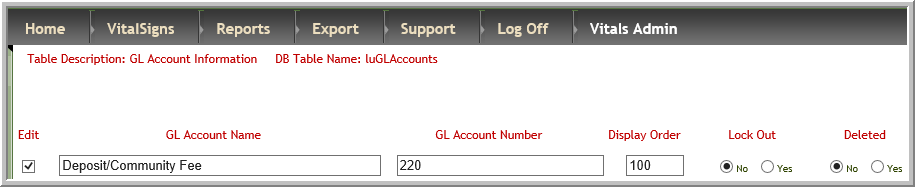
- Scroll to the right until WaitListBedResIND is in view. Click Yes if you want something to start appearing as option in drop down for Wait List and Reservations or select No if you no longer want the option to display for Wait List and Reservations.
 Note: The option will still display in PreBill even if it no longer displays in Wait List and Reservations.
 - Then click Update located near the top center portion of screen to save your change(s).

Was this article helpful?
That’s Great!
Thank you for your feedback
Sorry! We couldn't be helpful
Thank you for your feedback
Feedback sent
We appreciate your effort and will try to fix the article