This article explains how to complete many invoices at once. We recommend that you do not complete more than 50 at a time.
1. Click Prepare Statements
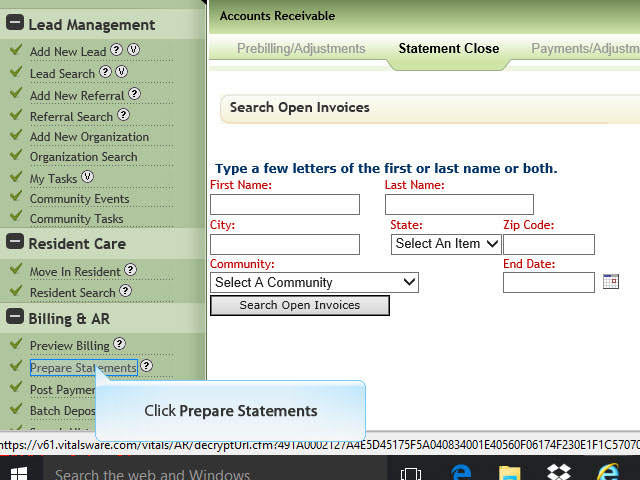
2. If you have access to more than one community ensure you select the correct community. It is a best practice to ensure that all invoices from previous month have been completed before completing this month’s invoices. For example, if most of your residents have open Prebills with starting date of 12/1/2015 search for invoices with ending date of 11/30/2015. Complete all these steps and then repeat again for all open invoices with ending date of12/31/2015.
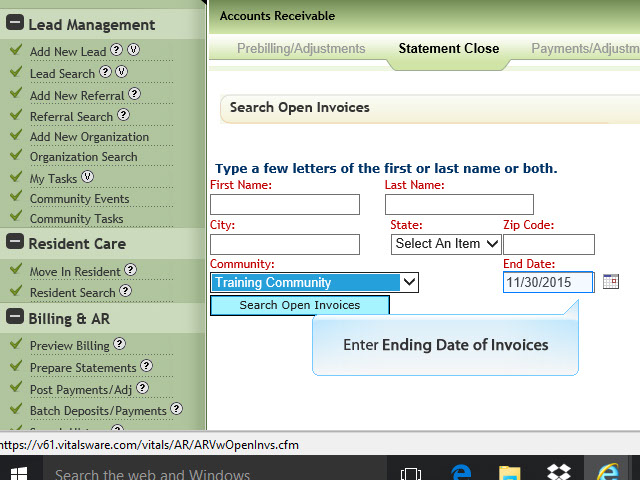
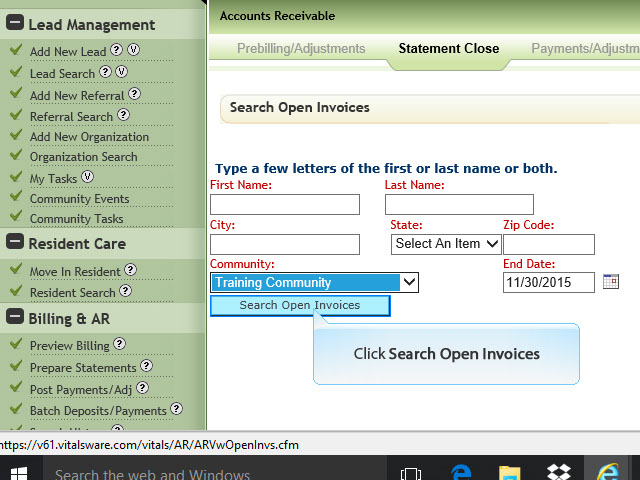
3. Click Search Open Invoices
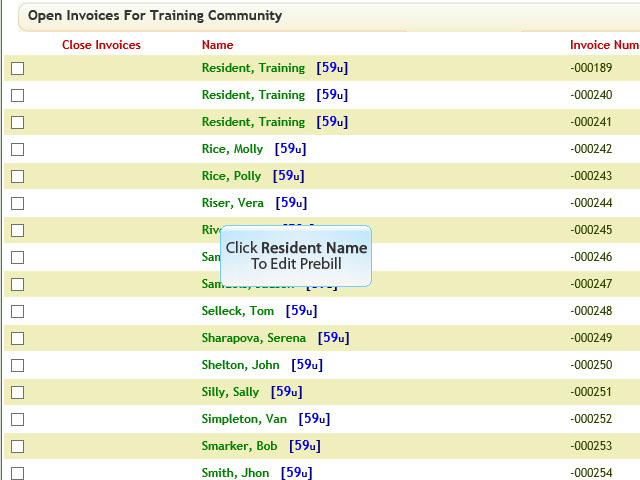
4. Click each resident’s name to edit their prebill as necessary then click the x in the upper right hand corner of prebill
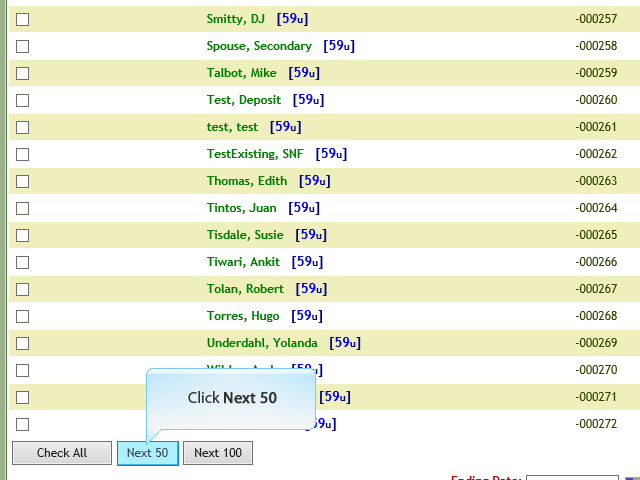
5. Scroll down to the bottom of the screen after you have ensured all the Prebills are correct and click Next 50. This will select the checkboxes by the top 50 invoices.
6. Ensure the correct Ending Invoice Date displays
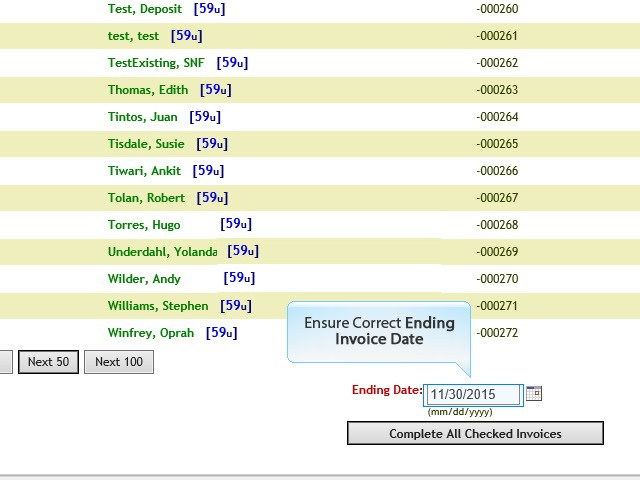
Repeat steps 5, 6 and 7 if there are more invoices to complete for that time period and then repeat as needed if you need to complete invoices for current Prebills.
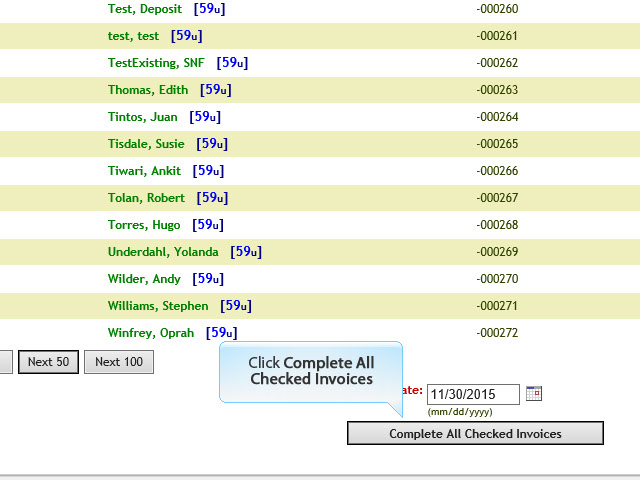
7. Click Complete All Checked Invoices
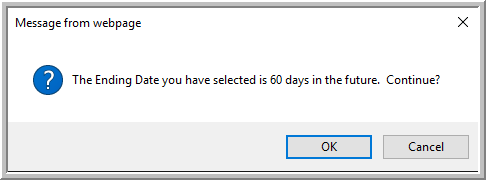
Important: If you get this message when you click Complete All Checked Invoices, click Cancel enter correct ending invoice date.
Was this article helpful?
That’s Great!
Thank you for your feedback
Sorry! We couldn't be helpful
Thank you for your feedback
Feedback sent
We appreciate your effort and will try to fix the article