1. Configure a Responsible Party in Vitals for each email address you wish to send to. Make sure to check the box “Receive Email Invoice:” on the responsible party popup screen.
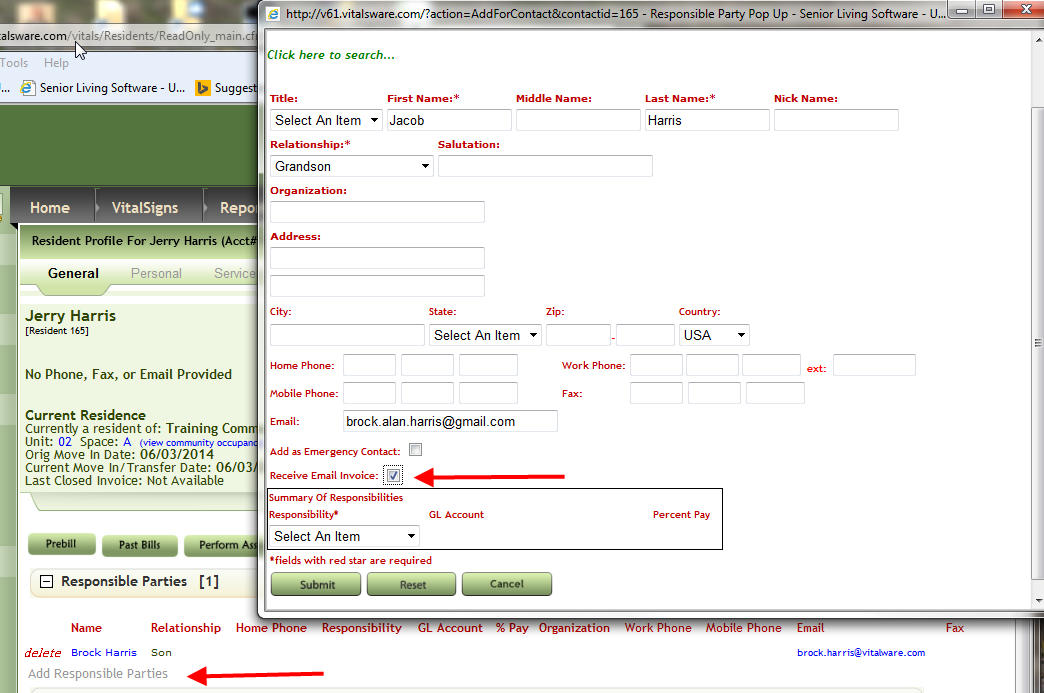
TIP: If you wish the business office to receive a copy of the emails sent just add another responsible party to entry to the resident profile with email address. You can set a generic responsibility type of “Other” for this purpose.
2. When closing the initial invoice for the resident upon move in you will be prompted to confirm if you wish to email the first invoice. If you wish to forego this option and do this at a later time you may click cancel.
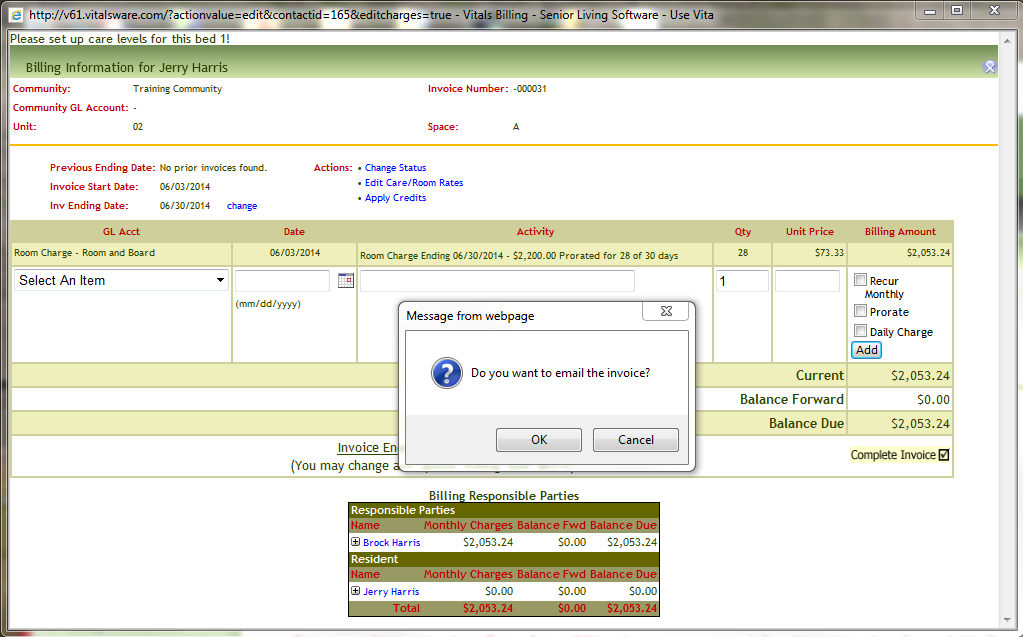
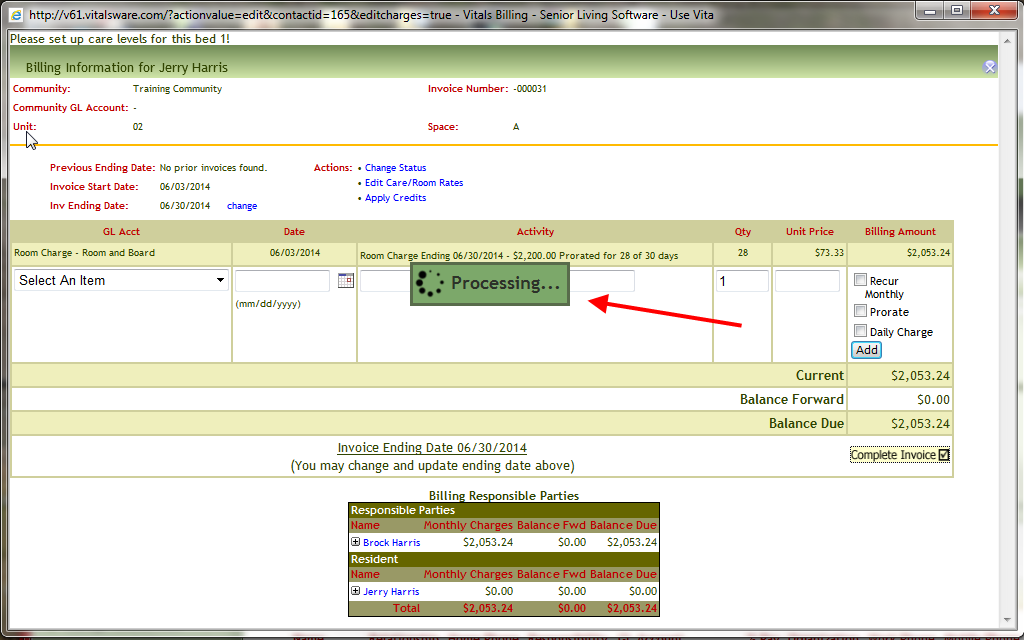
3. If you answer “Yes” to confirm emailing the initial invoice the Complete Invoice process will take a little longer as Vitals is preparing the invoice report behind the scenes. Please be patient and allow the process to complete. Do not force closing the Prebill popup window.
4. In the recipient’s mailbox they will receive an email from noreply@vitalsware.com. Please advise them to check junk mail folders should they inquire regarding not receiving on invoice.
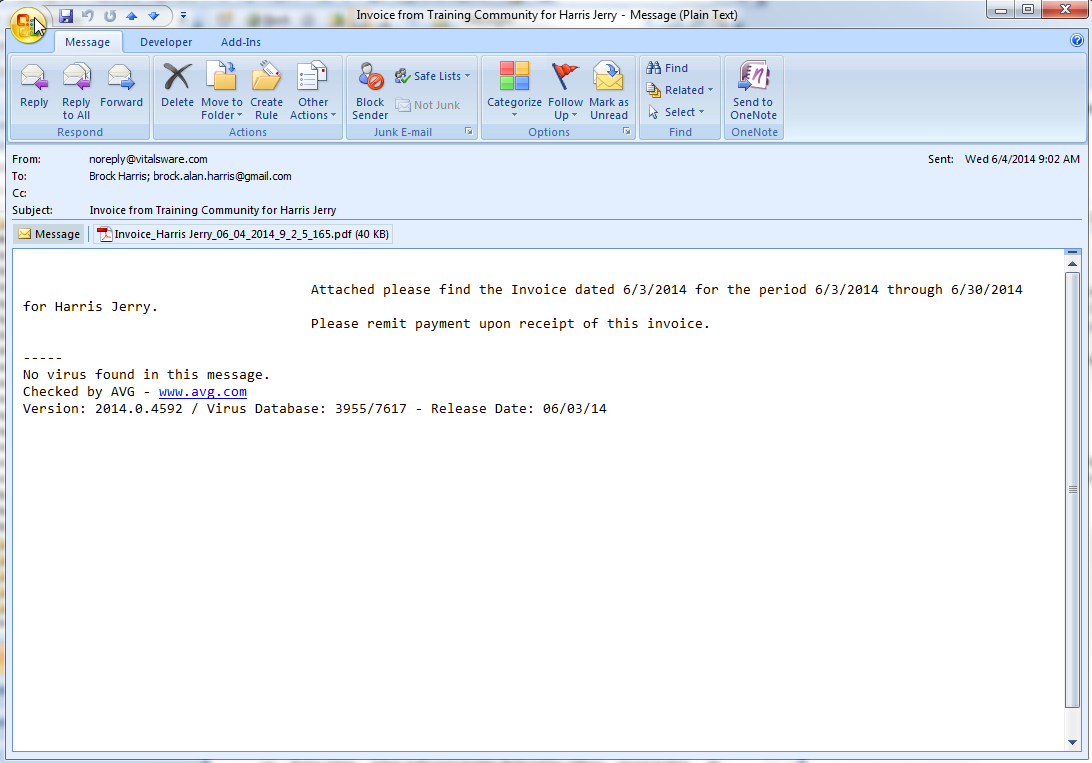
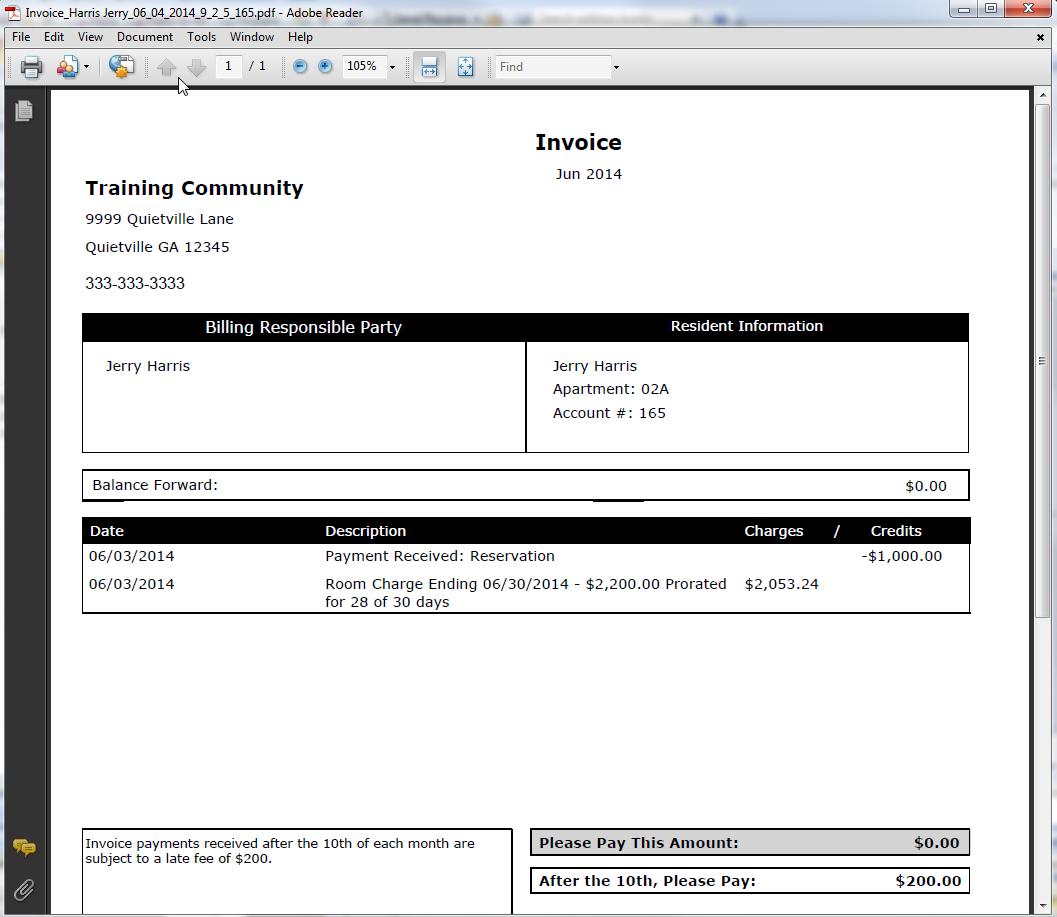
5. Invoices can be viewed and printed by recipients by opening the attached PDF.
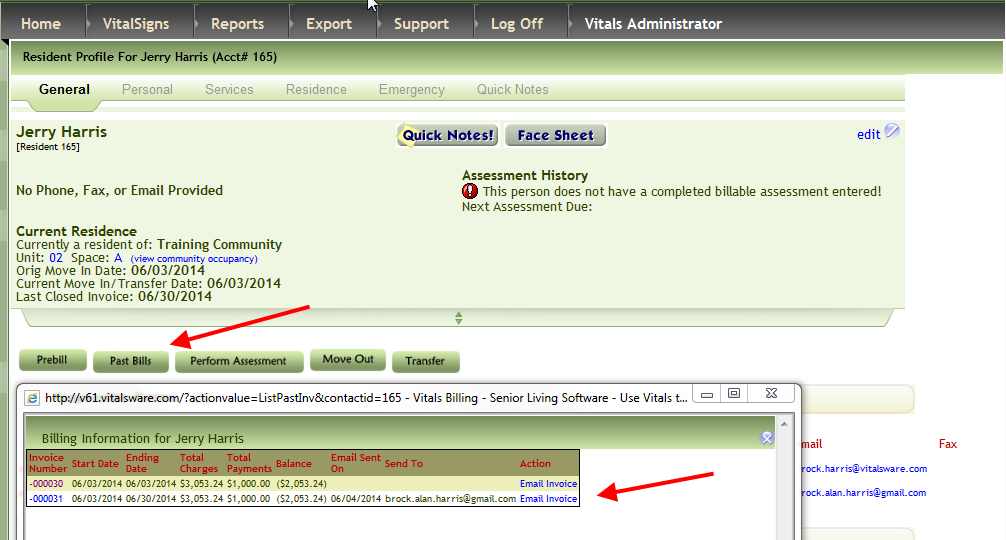
6. To resend a copy of an invoice to a resident via email you can access the Past Bills button on the resident profile and click the Email Invoice link.
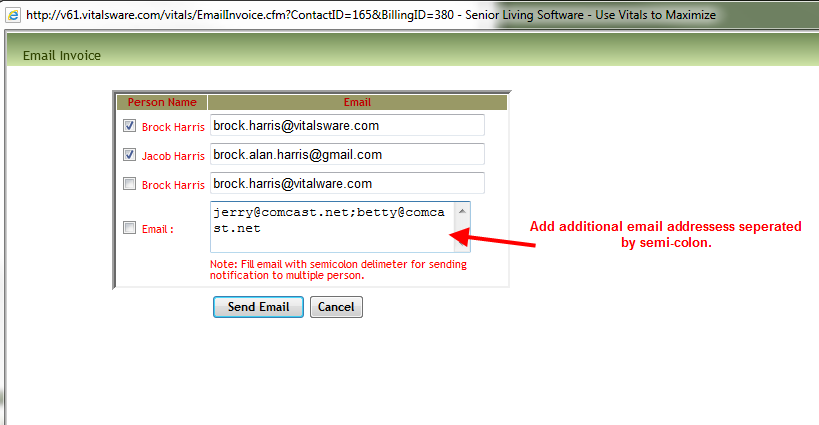
7. Select/deselect one of the responsible parties or hand key more email addresses using the Email: text box. Separate multiple email addresses with semi-colon.
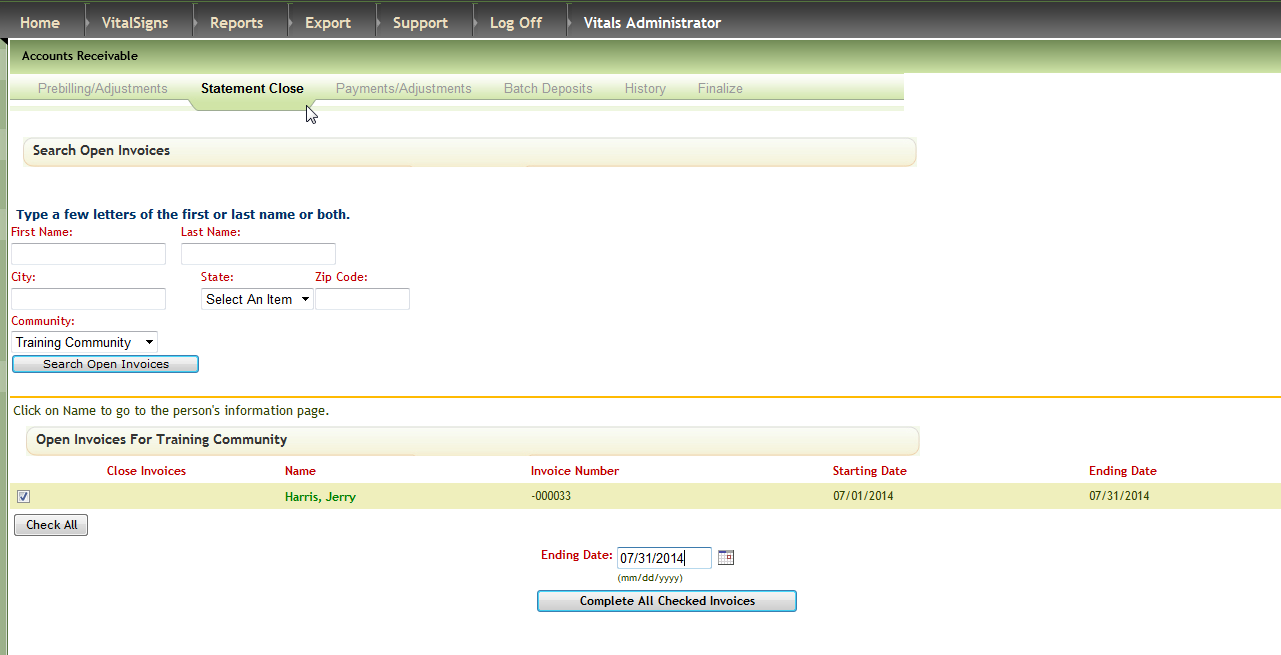
8. Email configurations are active during a Statement Close for an entire community.
Was this article helpful?
That’s Great!
Thank you for your feedback
Sorry! We couldn't be helpful
Thank you for your feedback
Feedback sent
We appreciate your effort and will try to fix the article