Configuring IE11 Compatibility for Vitals Reports
Vitals users who have recently updated their Internet Explorer browser to version 11 may experience problems with older legacy versions of Vitals Reports. The most common issue reported by end users is the printing and navigation features of the toolbar being unavailable.
Here is how to check if your browser version is IE11.
- Click the sprocket like icon in the upper right and click About Internet Explorer in the menu selection.
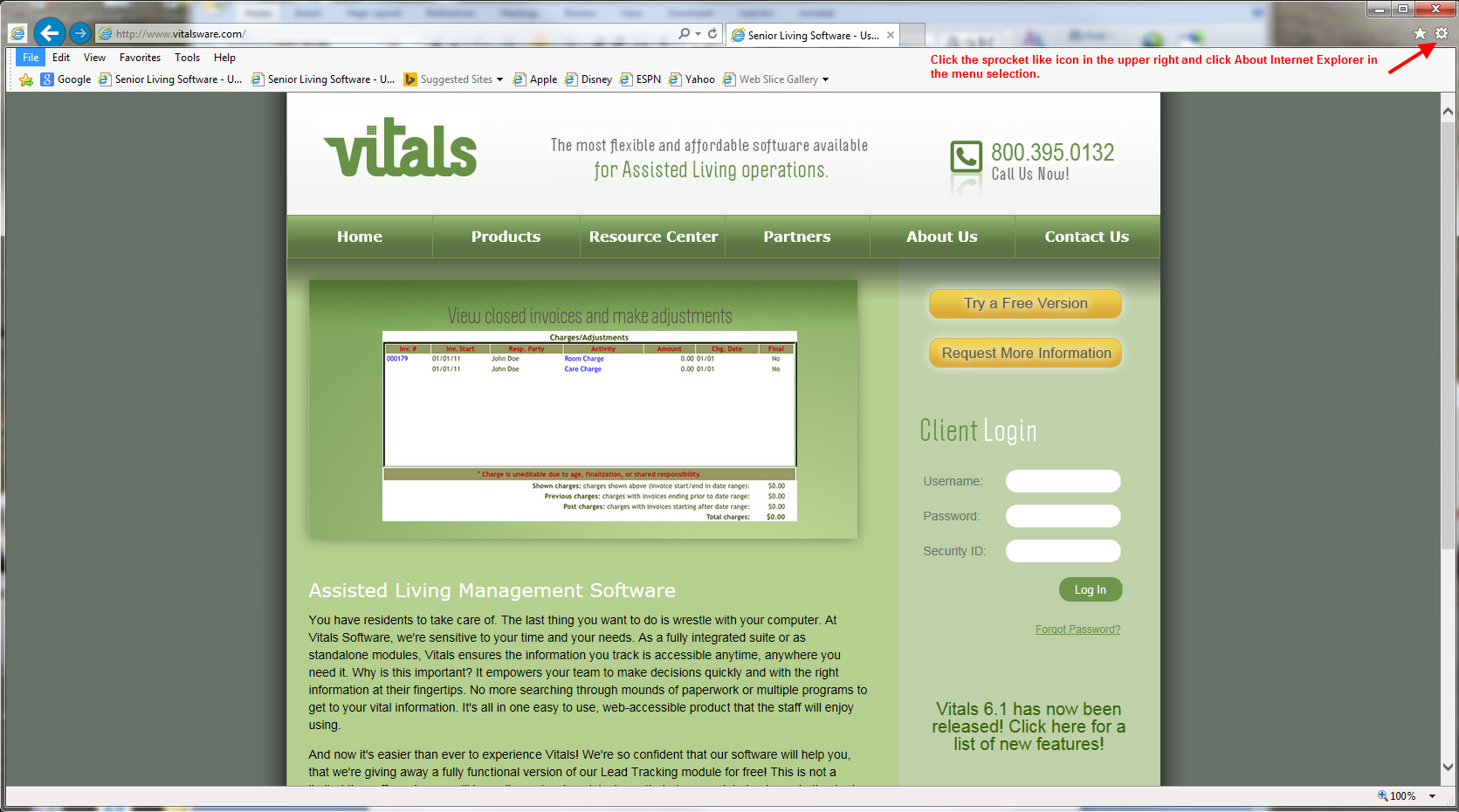
The version of Internet Explorer will be displayed.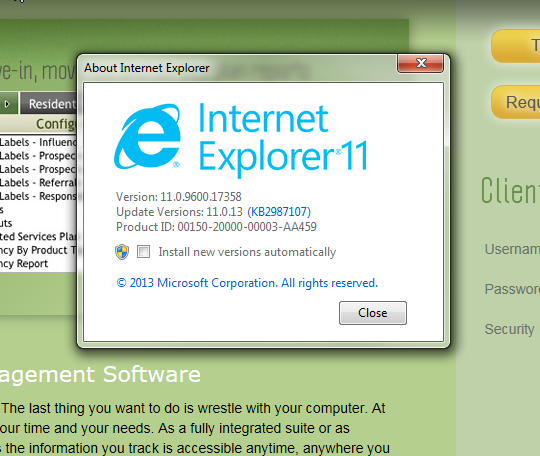
Some Vitals reports will have a toolbar at the top of the page as follows. Notice that the toolbar is unusable for printing, export, and some navigation purposes features.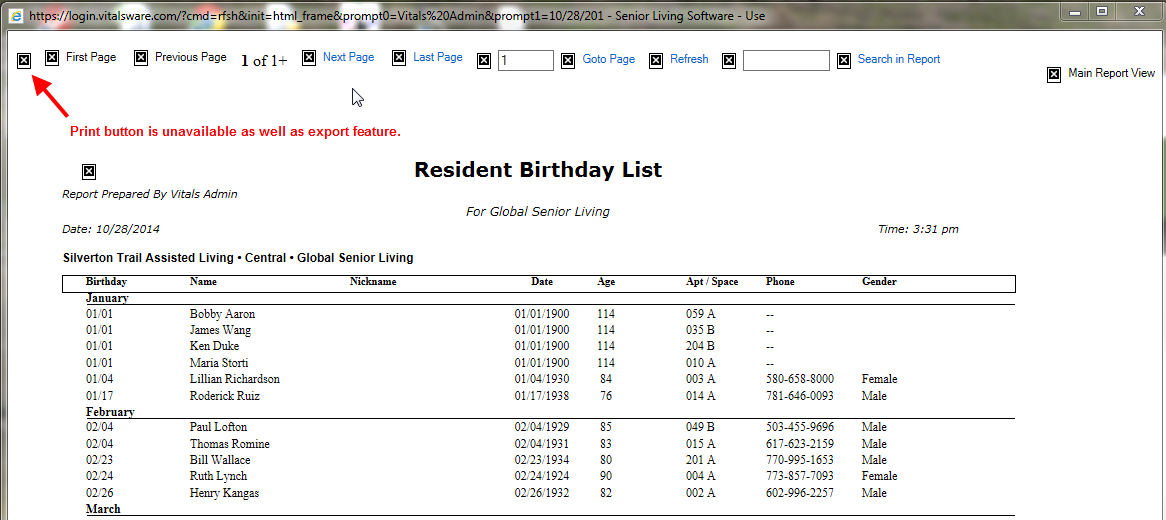
We will show how to fix this issue in Windows 7 and Windows 10 first.
- Select Tools/Compatibility View Settings
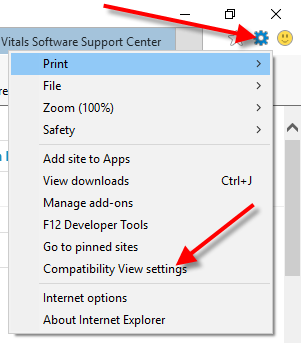
- Enter vitalsware.com to the Compatibility View Settings list then click Add. Enter intracare.com click Add. Click Close button when finished.
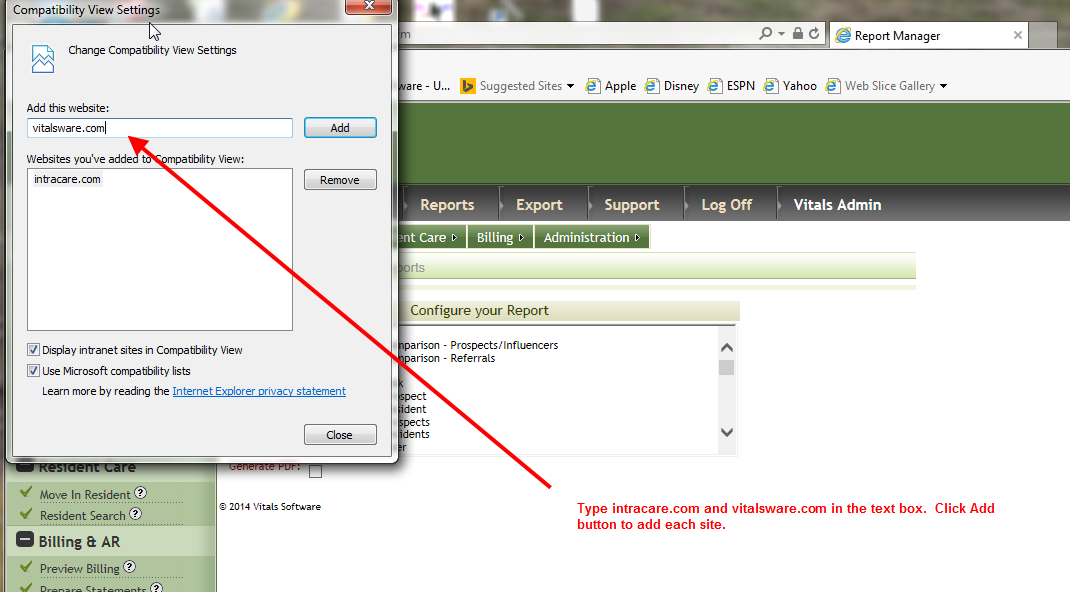
- Close all browsers after completing these steps.
- Open a new browser and login to Vitals. When a Crystal report is run the toolbar has Printing, Export, and all navigation functions available using IE11 in compatibility view.
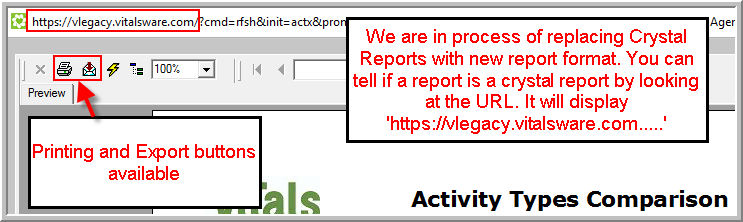
Note: If the reports still do not work.
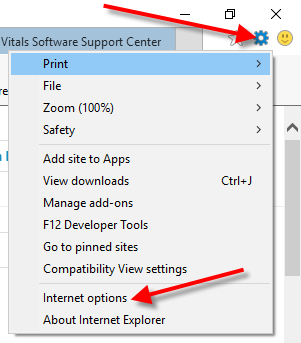
- Reset internet explorer settings by clicking Tools/Internet Options
- Click Advanced then click Reset then click OK
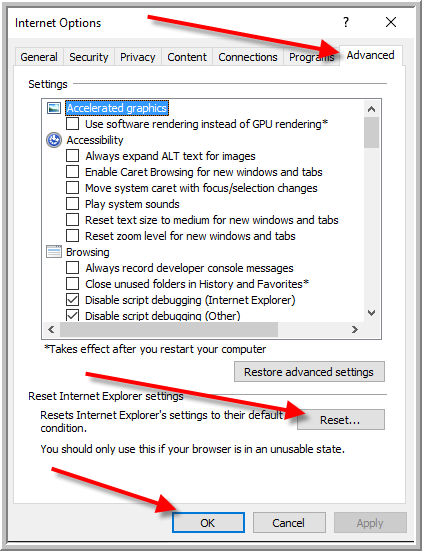
- Restart your computer, check all settings and reinstall Crystal Reports plugin at https://reports.vitalsware.com/reports/loadplugin.rpt
- All the settings that are needed are in this article Settings to Enable Crystal Reports and Popus
The steps to set compatibility for Windows 8.1 are as follows.
- With the Internet Explorer browser open, press function key F12.
- At the bottom scroll down to the last icon – looks like a PC.
- Under user agent string, select Internet Explorer 10.
- Click the Emulation icon to save the settings.
Was this article helpful?
That’s Great!
Thank you for your feedback
Sorry! We couldn't be helpful
Thank you for your feedback
Feedback sent
We appreciate your effort and will try to fix the article