Whenever you are adding or deleting a bed…think of it as a 2 step process:
1. Edit Apartment Details
2. Add or delete a space (if you are deleting a bed you will need to delete bed before you Edit Apartment details…) See detailed steps below.
Steps To Add Bed
Each resident needs to occupy their own space within Vitals. Therefore, if the apartment only has 1 space you need to setup another space for that apartment. The way to do so is as follows:
1. Click Manage Communities
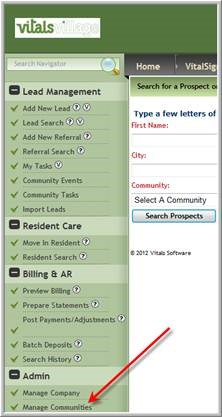
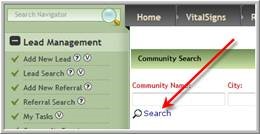
2. Click Search
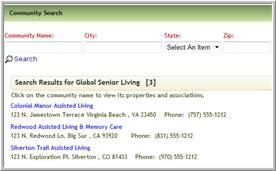
3. Click The name of your community
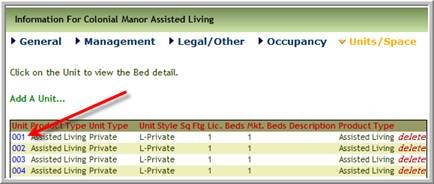
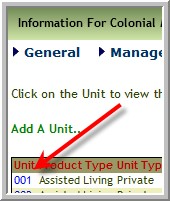
4. Click the Unit number that needs the extra space
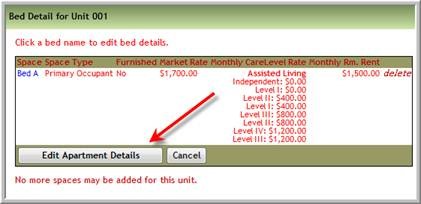
5. Click Edit Apartment Details
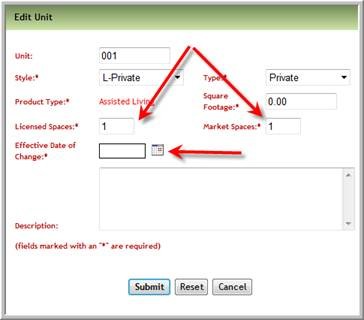
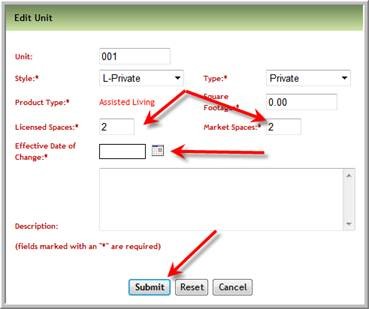
6. Change Market and License from 1 to 2 (or 3)….and enter the effective date of change, then Click Submit. (Important! You are not finished yet. You still need to do steps 7,8 and 9.)
7. IMPORTANT: YOU ARE NOT FINISHED! Click the unit again
8. Click Add a Space
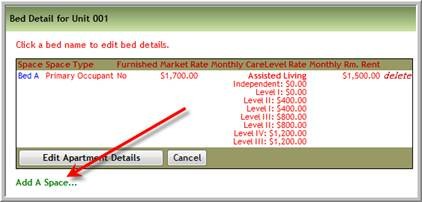
9. Enter the data that applies to your apartment it may be different than the screen below, then Click Submit
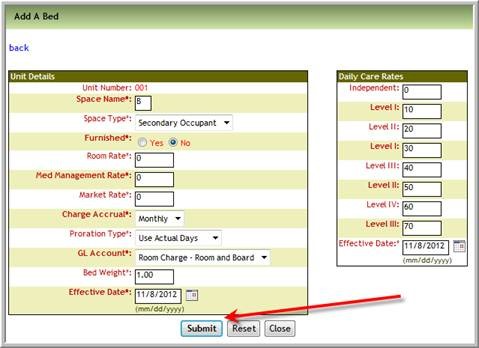
(Care rates differ by company…look at another apartment if you are unsure.) Note: Some companies use ‘S’ for 2nd beds for some apartments. Check with your company for their policy. Typically companies setup Day Stay beds with a bed weight =0 and bed spaces are named X, Y or Z.
Steps to Delete Bed
1. Click Manage Communities
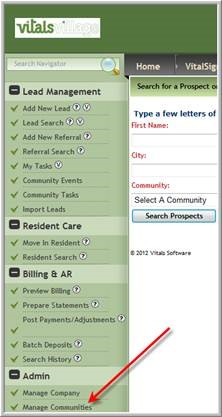
2. Click Search
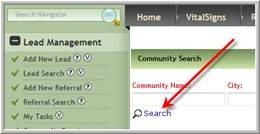
3. Click The name of your community
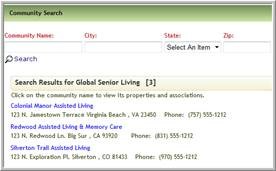
4. Click the Unit number that has a space/bed that needs to be deleted
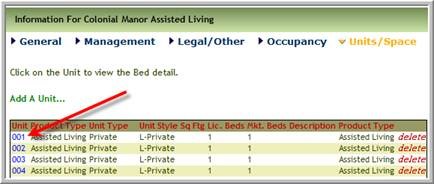
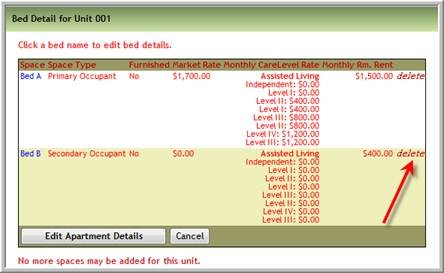
5. Click delete adjacent to the apartment space that is no longer needed
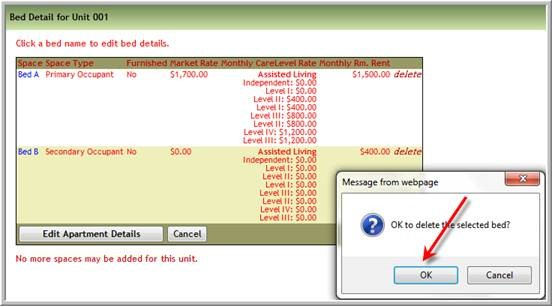
6. Click OK
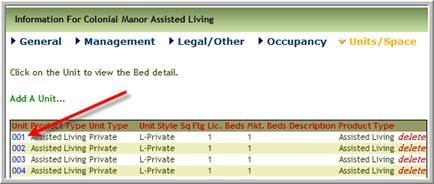
7. Important you are not finished! Click the unit number again
8. Click Edit Apartment Details
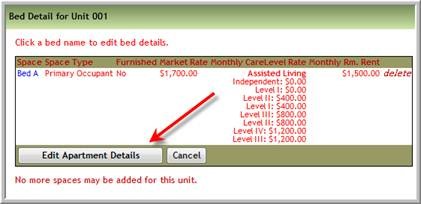
9. Change the Licensed Spaces and Market Spaces to the correct number of rooms, enter the effective date of change and click Submit
Was this article helpful?
That’s Great!
Thank you for your feedback
Sorry! We couldn't be helpful
Thank you for your feedback
Feedback sent
We appreciate your effort and will try to fix the article