Mailing List
The steps to get mailing list in Excel format are:
- Click Export-->Mailing Lists
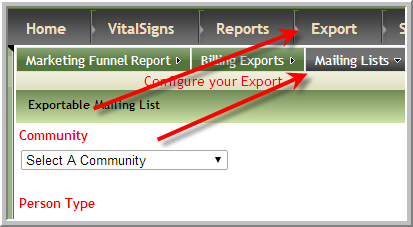
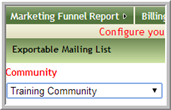
- If you have access to multiple communities select a community
- The only other required steps are to select Person type and to click Export Mailing List. (However, when you are using the list for something other than mailing labels a frequently selected option is to select “All Addresses” rather than “Good Addresses Only”)
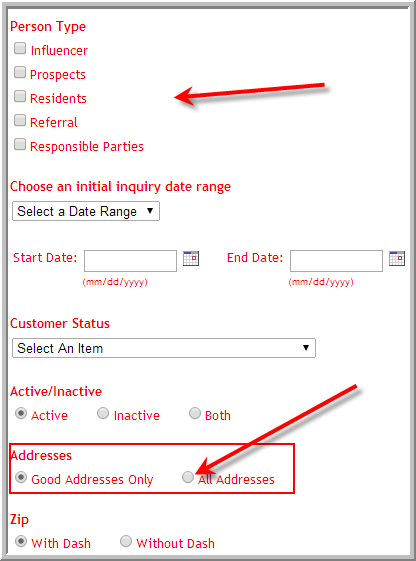
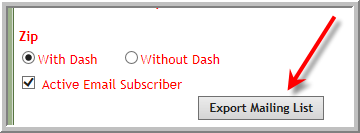
Note: The most frequent mistake is to try and enter Initial Inquiry Dates or Customer Status when it is not needed or does not apply. - (Options for Email List only) Click Active Email Subscriber (Avoid sending emails to people who have asked not to receive emails) Note: The list will display people with and without email addresses
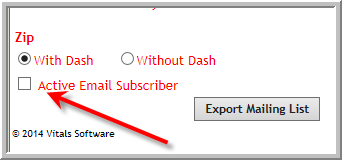
- Click Export Mailing List
- Click Open

- Click Yes

For Emails:
These steps work for Microsoft Outlook they may not work with other email programs:
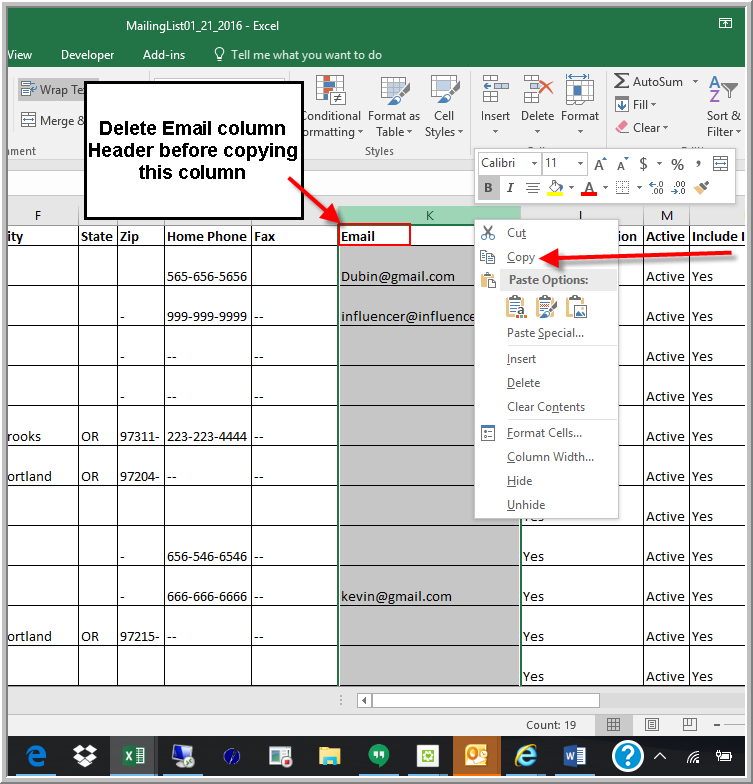
- Remove the Email column header from the excel spreadsheet
- Open a new email Outlook email message.
- Right click the column with email addresses to highlight the column. Click Copy
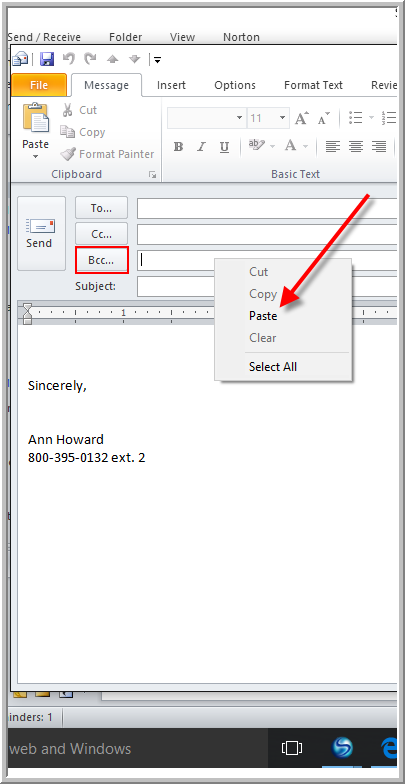
- Right click the bcc area of your email message, select Paste
- Click the subject and/or message area of your email. The delimiter should automatically display between each email address
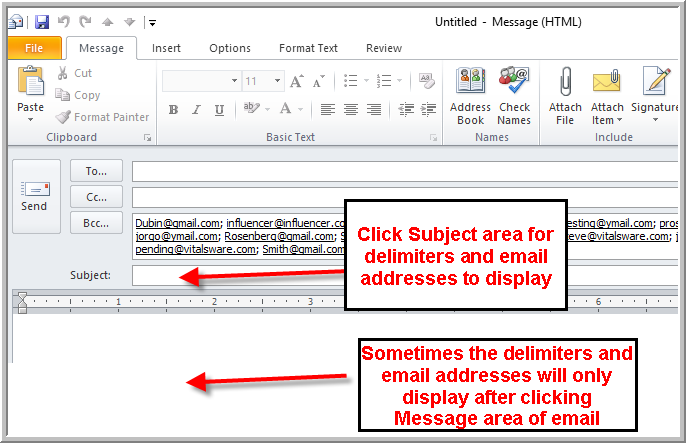
Note: Some spam blockers will block emails that have many email addresses. You might consider making several emails rather than one email.
Was this article helpful?
That’s Great!
Thank you for your feedback
Sorry! We couldn't be helpful
Thank you for your feedback
Feedback sent
We appreciate your effort and will try to fix the article