Saved Reports
Vitals allows you to save reports and schedule the reports to be sent to you or to another person on a one time or regular basis. You will learn how to save the report and set the schedule.
Manage Saved Reports
After you save the reports you may need to make a change such as delivering the report on a different date. You will learn how to make changes to your saved reports
Steps to Save Report:
There are a few reasons you might want to save a report; however, the main reason is to schedule reports to be automatically emailed to you on a regular basis.
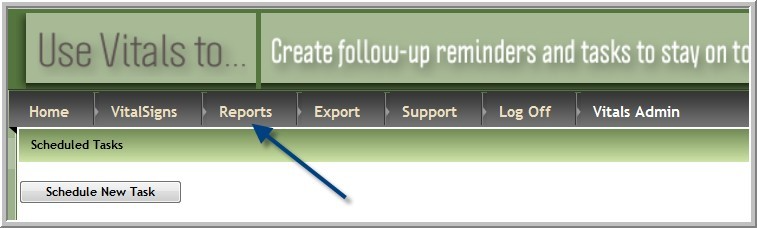
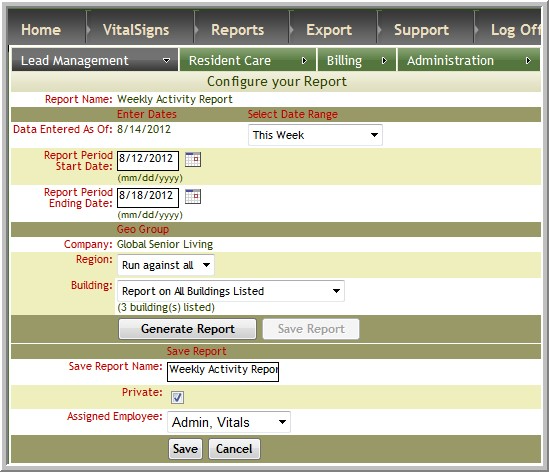
1. Click Reports
2. Click the Tab for the type of report you need. (Categories: Lead Management, Resident Care, Billing or Administration.)
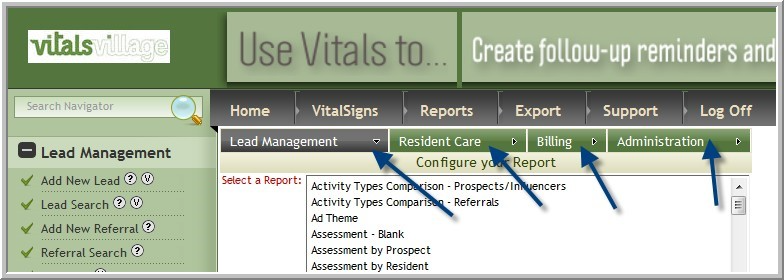
Note: Later when you are searching for saved reports you might want to refer to this tab.
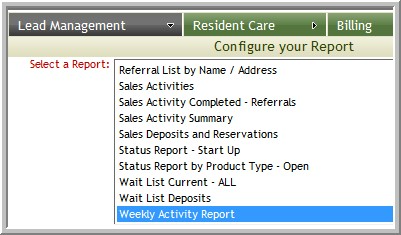
3. Select the report, such as Weekly Activity Report
4. When the report requires selecting date range, select one of the generic dates such as This Week, Last Week Otherwise, if you were to select a date such as 8/12/2012 through 8/18/2012 every time you ran the report you would generate the report of 8/12/2012 through 8/18/2012 rather than for the current week that you need the report.
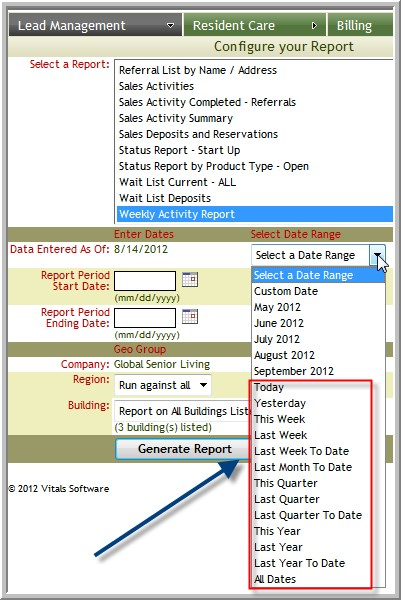
Note: When you select This Week you will get records from Sunday through Saturday.
5. Select any other parameters that you need for the report
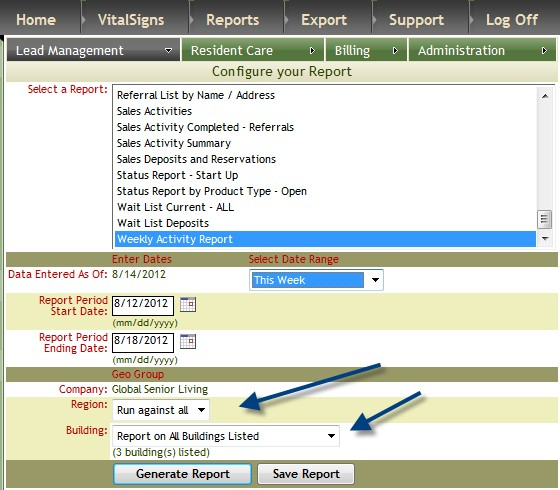
6. Click Save Report
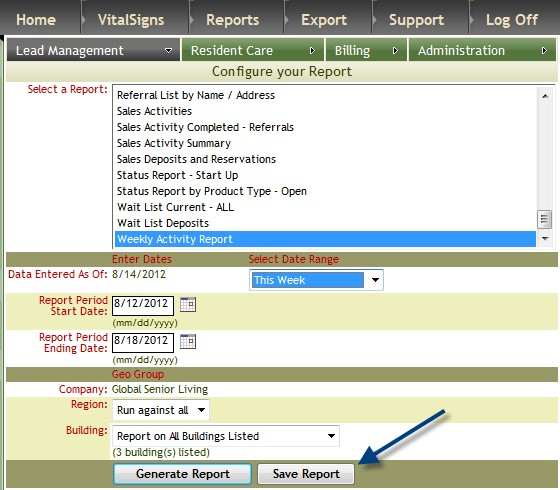
7. The default name of the report is Report Name-User Name. You can change the name of the saved report.
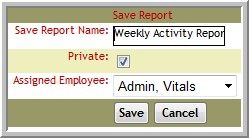
8. Most of the time you will select Private meaning only you and the assigned employee will see the report. If you want anyone to be able to run the report, deselect Private.
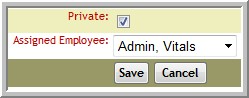
9. If you are creating this saved report for someone else, select their name under Assigned Employee
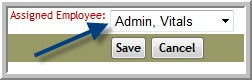
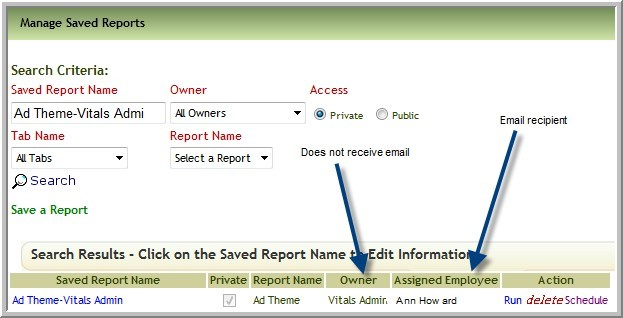
Note: Any of the scheduled email reports will be for the Assigned Employee only. The owner (creator) of the Saved Report will not get the scheduled email except for when they are also the Assigned Employee.
10. Click Save
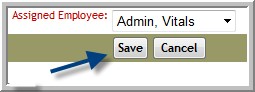
11. You are now on the page where you can schedule emailed reports, run reports, delete saved reports.
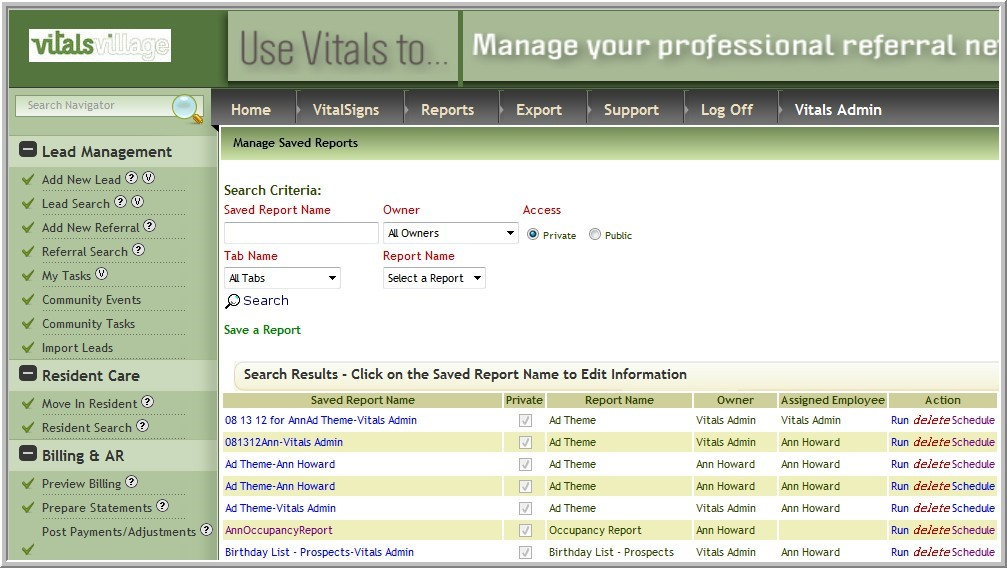
Manage Saved Reports
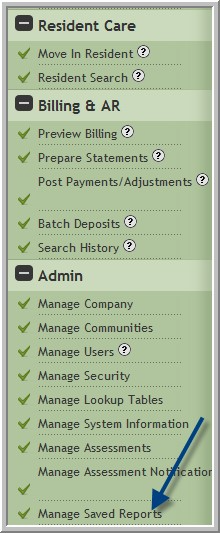
1. If you are not already on the Manage Saved Reports screen, click Manage Saved Reports
Locating Saved Reports
There are several options for locating a saved report. If you don’t have very many saved reports you will likely use one of the first few suggestions below. If you have a lot of saved reports you might want to filter the reports so that there will be fewer reports that generate from your search, in which case you will use one of the last options for searching.
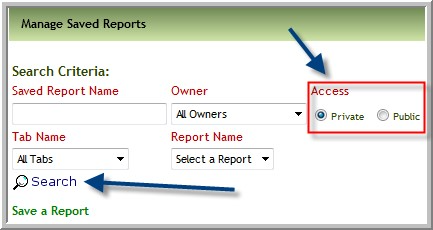
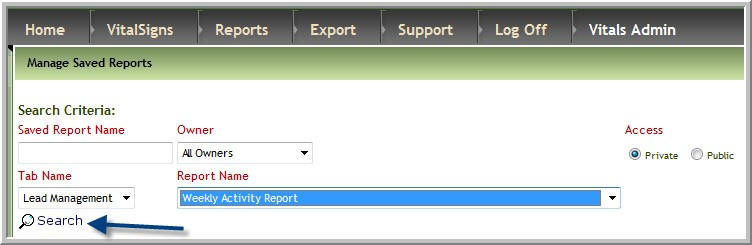
1. The easiest option is to search for Private or Public reports. (Private reports are saved only for you. Public reports are saved for everyone that would have access to that information. For example, if a user has access to all communities and saves a Public report only the other users that have access to all of the communities would have access to those public reports.) Then click Search.
2. Another option is to enter the first part of the saved report name in search field and then click Search
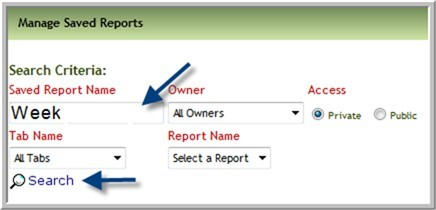
Note: Ensure the correct option of Private or Public is selected too.
3. Another option is to search for a saved report that was generated from a certain tab such as Lead Management
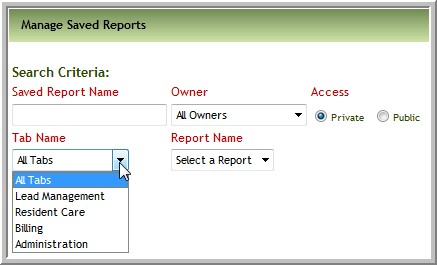
Note: Ensure the correct access of Private or Public is also selected.
a. (optional) To filter the selection of reports even further, select the report (The report name found in the usual report interface, not the Saved Report name.)
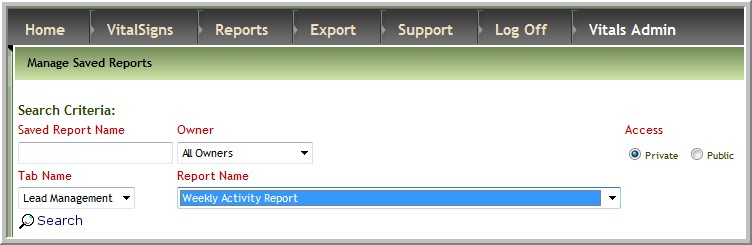
4. Click Search
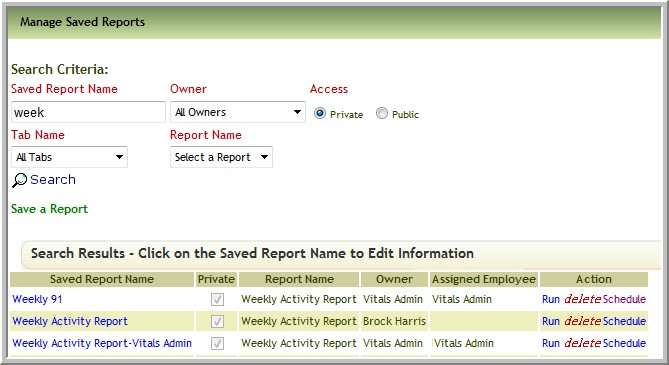
a. Notice the reports are in alphabetical order
Working with Saved Reports
1. Click the report name to review the parameters set up for the saved report

a. If you need to make any changes, do so then click Save
2. To generate the report, click Run

3. To delete the report, click Delete

4. To schedule an emailed report, click Schedule

Note: See next section to learn the steps for scheduling saved report emails.
Schedule Saved Report Emails
The following steps will explain how to create automated emails with reports that you need, when you need them. This functionality requires your correct email address to be stored within Vitals. The person named as the Assigned Employee receives the reports at the time specified.
Note: The time zone used is determined by the computer used to create the scheduled email.
1. Locate the Saved Report (refer to the steps under Manage Saved Reports)
2. Click Schedule

3. Click Schedule New Email Report
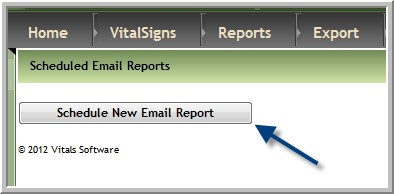
Note: You can only create 1 emailed report from each saved report.
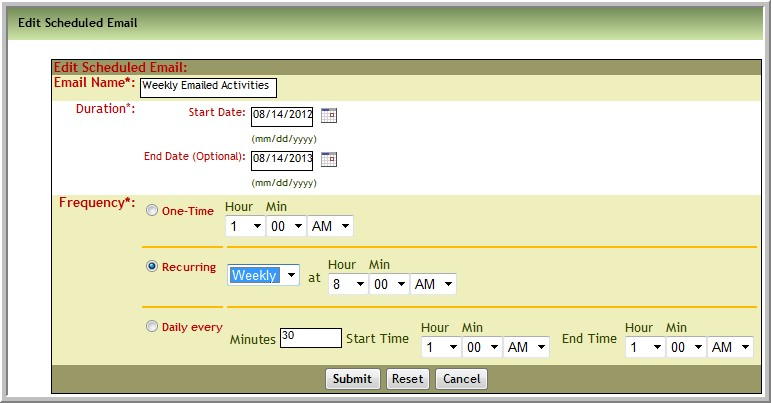
4. Enter the name of the email
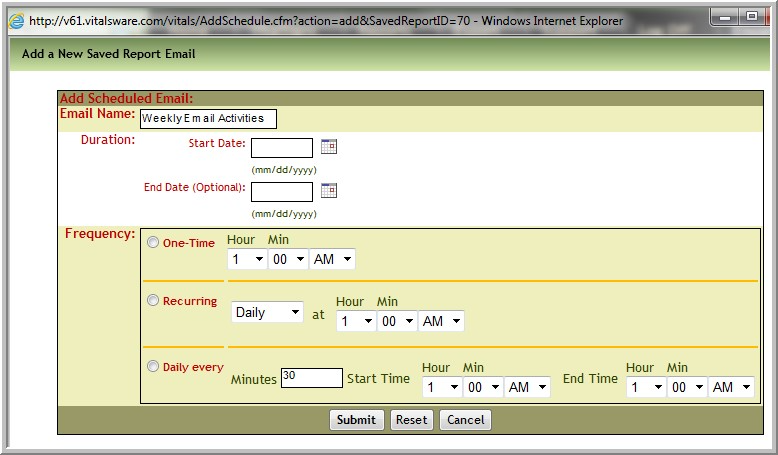
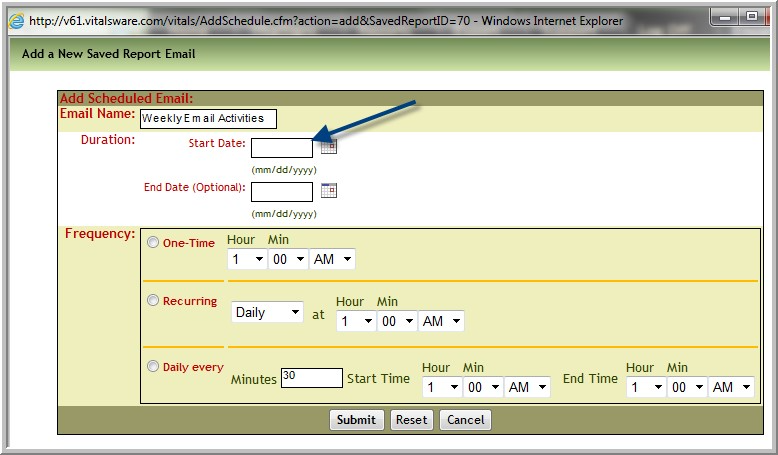
5. Enter the date you want to start sending emails
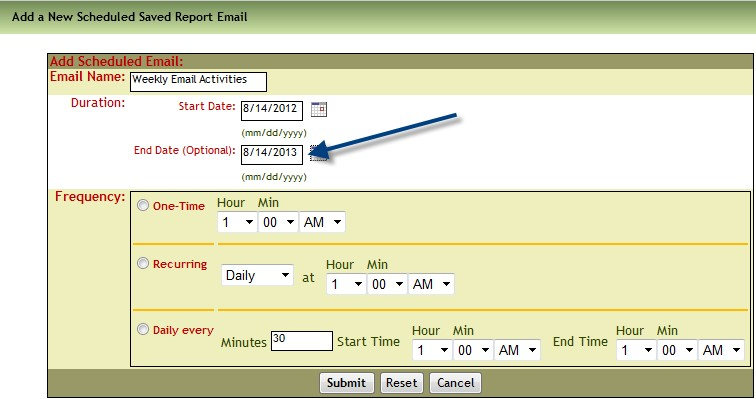
6. (optional) If you only want to receive the email for a limited time period enter the date of the last email
7. Select the Frequency of one time, recurring or daily, the selection below indicates the report will be sent weekly on the same day of the week as the start date at 8:00 AM
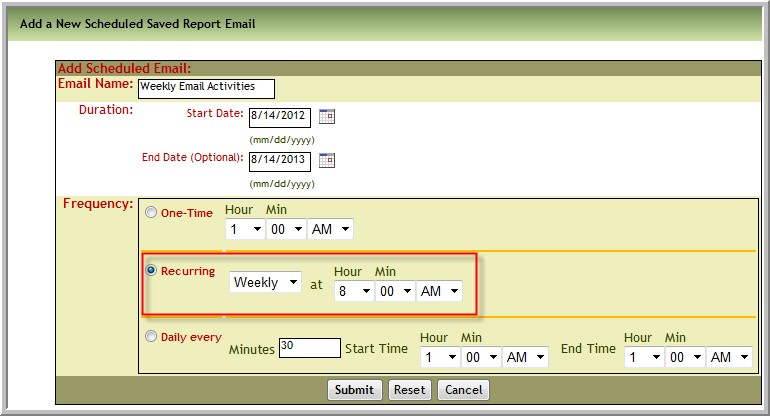
Note: It is possible to schedule the report to be emailed only once by selecting the one-time radio button and then entering the time the report should be mailed. If you want the report sent daily several times a day click Daily every then select how many minutes apart you want the emails to be mailed and the starting and ending time.
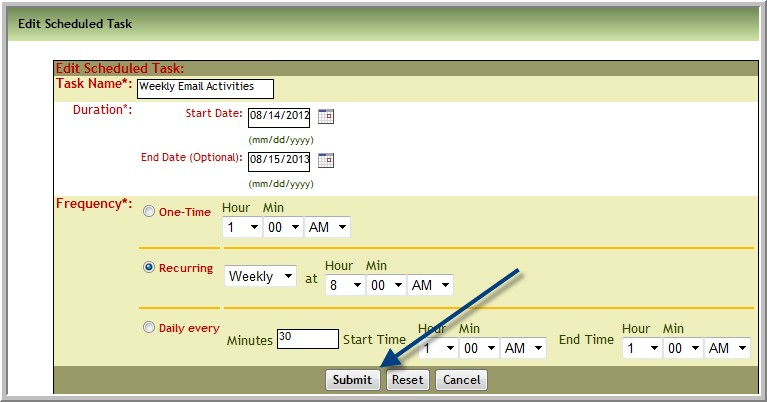
8. Click Submit
Change Email Report Schedule
You may not want to receive the emails anymore, or you might want to change the frequency or dates of the emails. Below you will find the steps to make changes.
1. Locate the saved report. Start with steps under Manage Saved Reports
2. Click Schedule

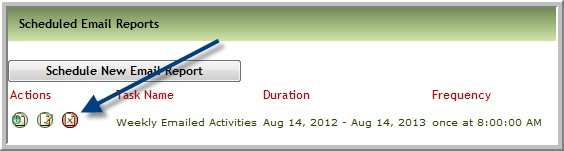
3. Click Run This Scheduled Task Icon to immediately send an email to the assigned employee (The scheduled email(s) will also be sent at appointed time.
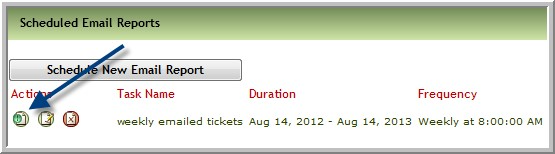
4. Click Edit to make changes to when you receive emails or how often you receive them.
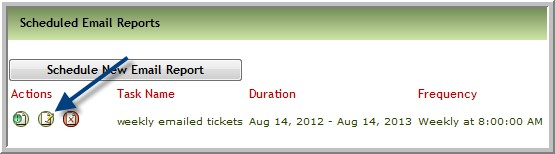
a. Make changes as needed, click Submit
5. Click Delete if you no longer need the report to be emailed to you.
Was this article helpful?
That’s Great!
Thank you for your feedback
Sorry! We couldn't be helpful
Thank you for your feedback
Feedback sent
We appreciate your effort and will try to fix the article