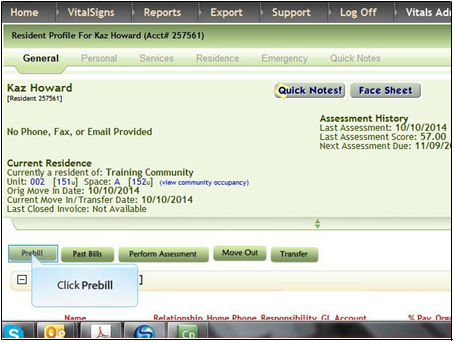
1. Before preparing the invoice ensure that all the billing responsible parties are added to the resident. If you add the billing responsible parties too late they will not get charges assigned to them. When you are ready to complete the first invoice, click Prebill
2. If the Room Rate is wrong click Edit Care/Room Rates
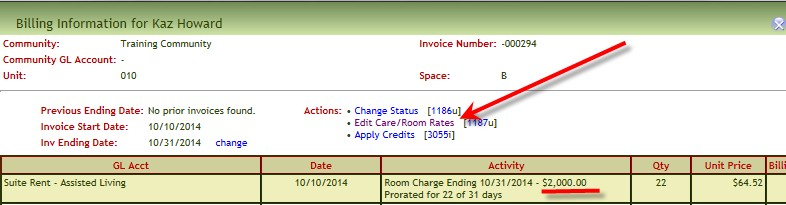
Note: If you are giving the resident a discount we recommend that you add a line item to the invoice indicating the discount rather than editing Care/Room rates. Some customers limit the users that can edit this information.
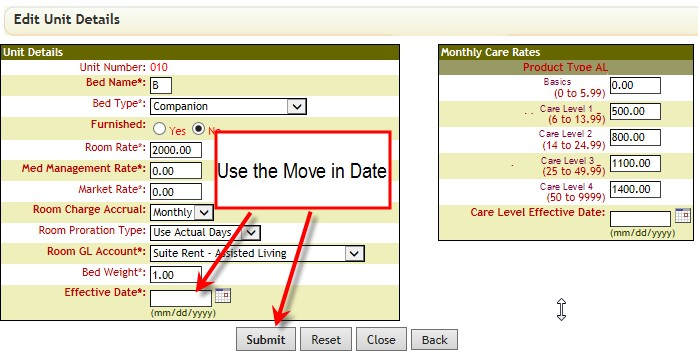
a. Make changes as needed when making a change for the very first invoice use the Move In Date as the effective date then click Submit (for subsequent invoices use the invoice start date otherwise the invoice will get backdated charges.)
3. To add another charge, click the down arrow located under GL Account
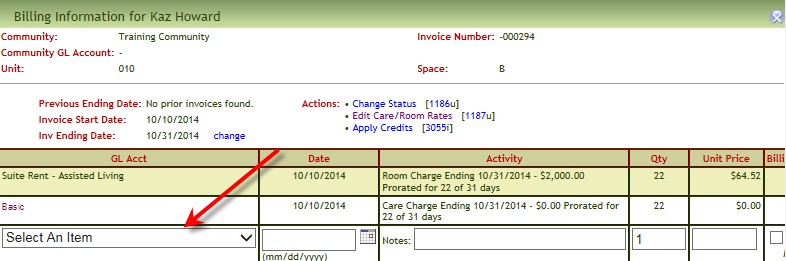
4. Select the charge
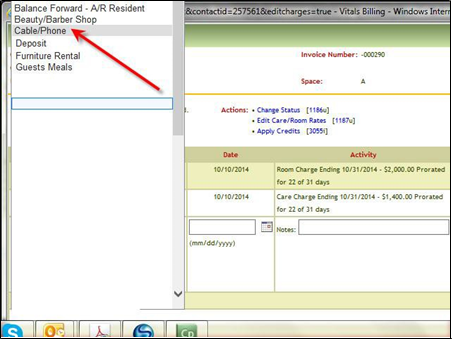
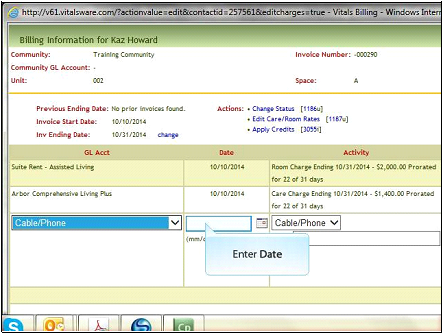
5. Enter the date (or start date) of the charge
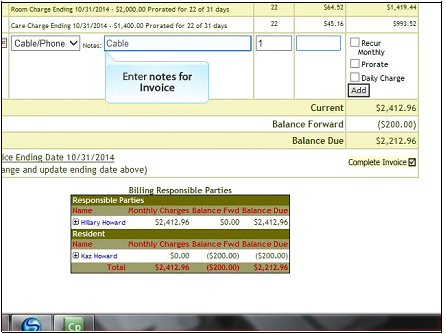
6. Enter the description of the charge (this information will display on the invoice)
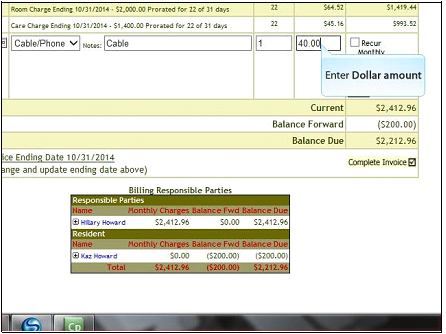
7. Enter the dollar amount
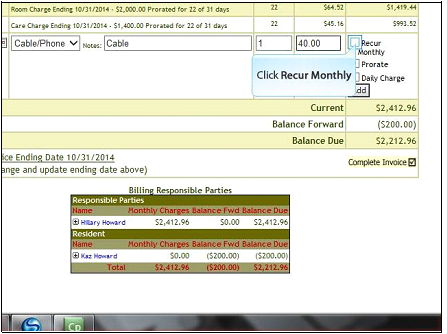
8. If the charge is going to recur monthly click Recur Monthly
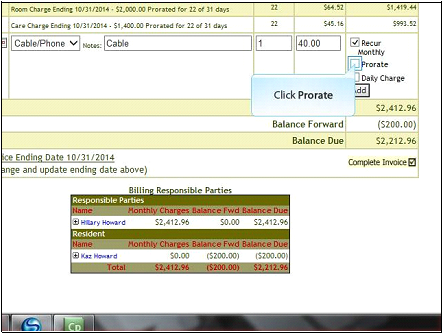
9. If the charge should be pro-rated if the resident moves out in the middle of a month click Prorate
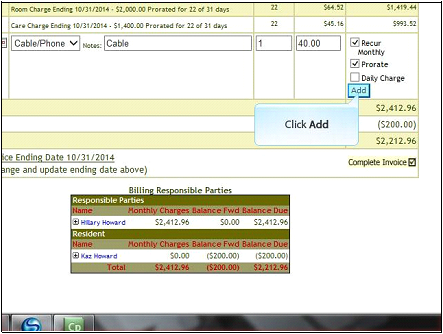
10. Click Add
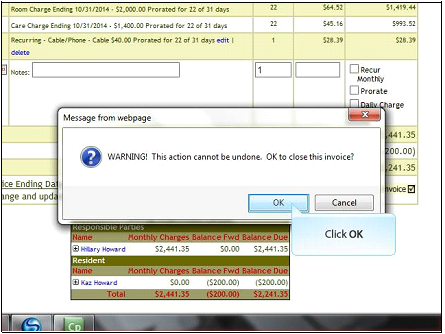
11. Once you have added all the charges for the first invoice, click Complete Invoice
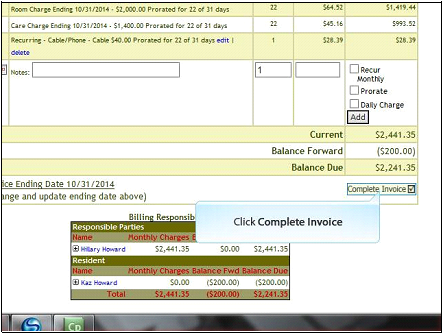
Note: Only click Complete Invoice once or you will close more than one month
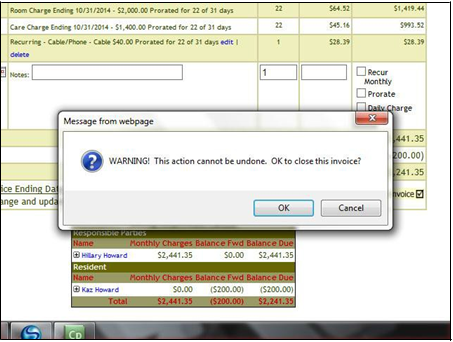
12. Click OK to complete invoice
13. If you want to email the invoice click OK. Otherwise click Cancel.
Note: The Prebill displays the ending date of the invoice just closed
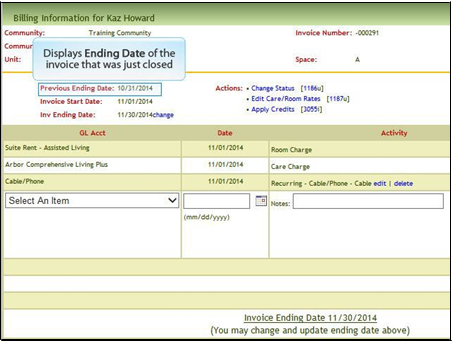
14. If necessary enter charges for the next bill; otherwise, click X to close the prebill

Was this article helpful?
That’s Great!
Thank you for your feedback
Sorry! We couldn't be helpful
Thank you for your feedback
Feedback sent
We appreciate your effort and will try to fix the article