In order to inactivate or delete a user, you must have the appropriate security privileges set on your account.
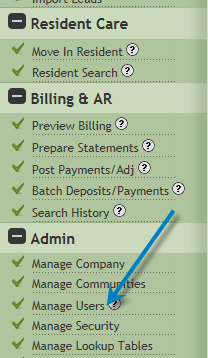
1. Click Manage Users
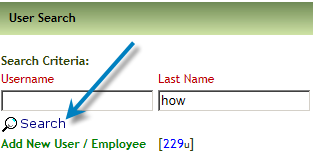
2. Search for Employee
3. Click Inactivate User

NOTE: You will generally want inactivate a user when you have a termination. This stops their ability to login to Vitals. If you terminate an employee that has scheduled (pending) activities you must re-assign their activities to another employee BEFORE inactivating their user account. Once you inactivate a user, you will not longer be able to view their activities under My Tasks. Click here for instructions on how to re-assign tasks.
If an inactive user is ever rehired you can reactivate them again without creating a new account.
Only Delete a user if a duplicate account was created in error.
Was this article helpful?
That’s Great!
Thank you for your feedback
Sorry! We couldn't be helpful
Thank you for your feedback
Feedback sent
We appreciate your effort and will try to fix the article