This article explains how to reserve an apartment and schedule a move in. Please note, the apartment must be available to reserve, meaning the apartment must be vacant or the current resident must have an anticipated or scheduled move out date in Vitals.
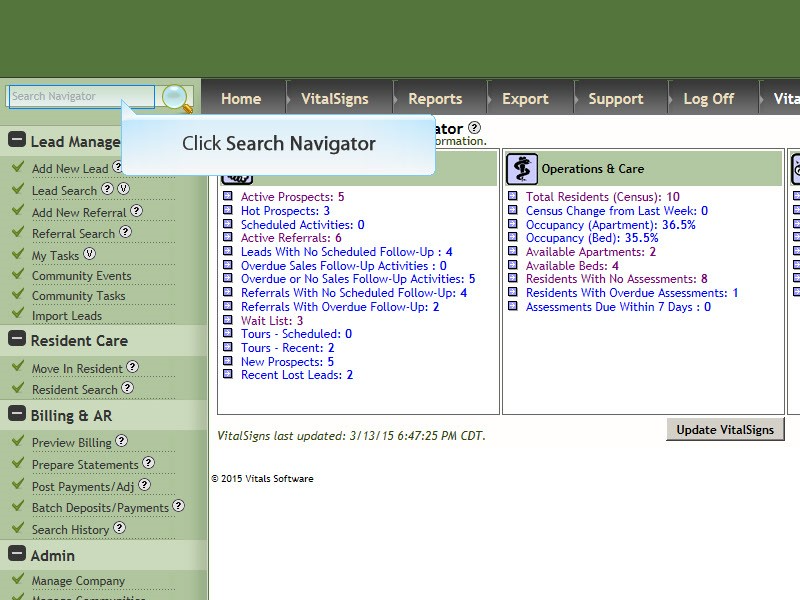
- Search for the lead or resident that needs to reserve an apartment by clicking Search Navigator and entering last name. (Searching by last name is recommended unless you are sure of how the first name is entered into Vitals. For example you will not find Bob Smith using the Search Navigator if you enter the name Robert Smith).
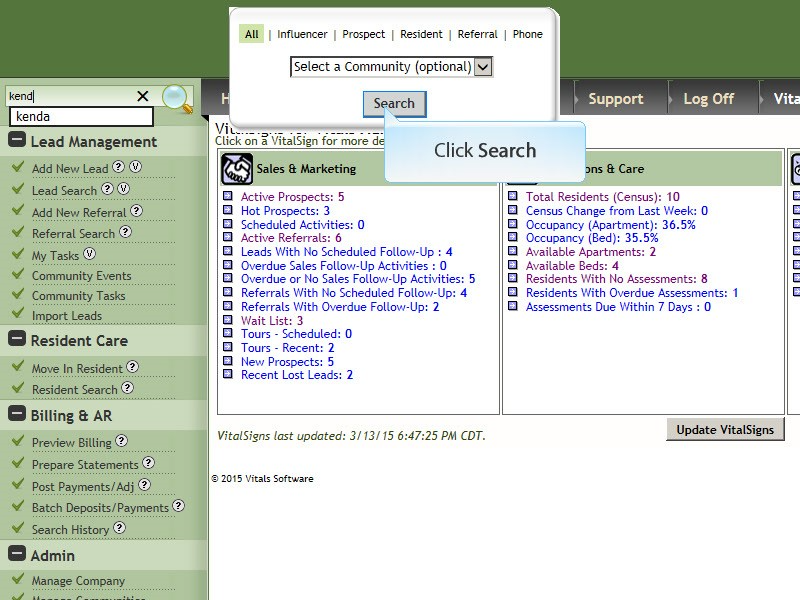
- Click Search
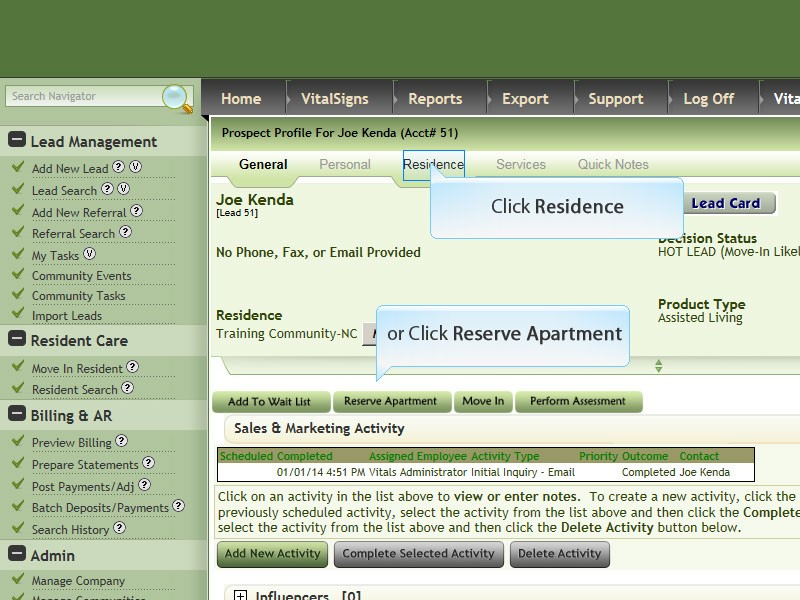
- On the Prospect’s General screen, click Residence or Reserve Apartment
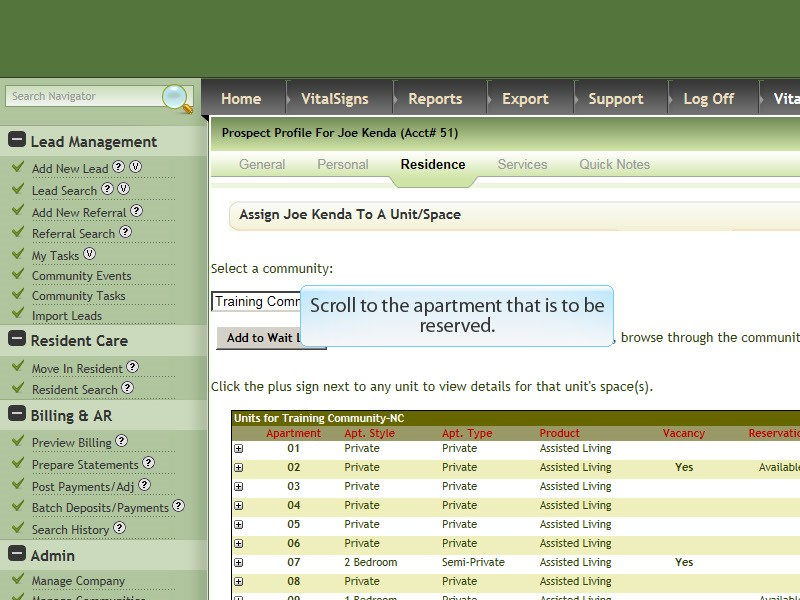
- Scroll down to the apartment that is to be reserved
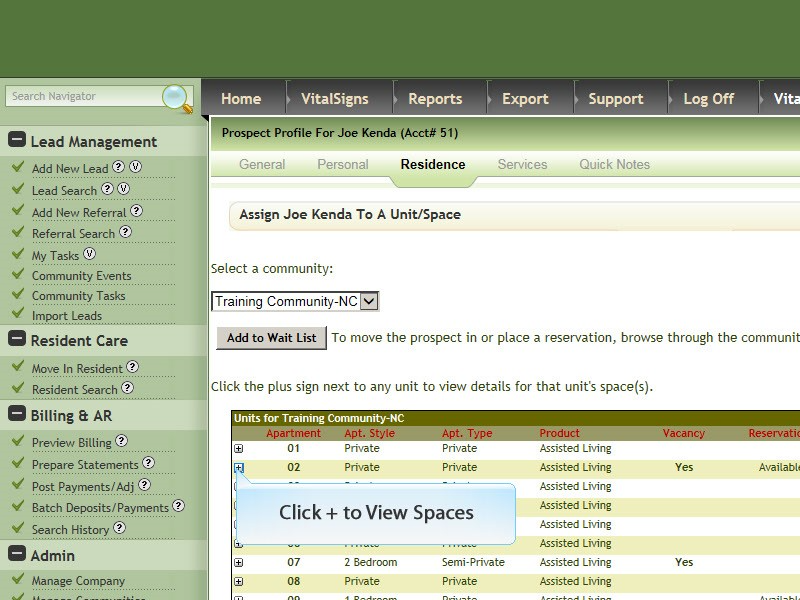
- Click on the Plus Sign, adjacent to apartment number to view bed(s)/space(s)
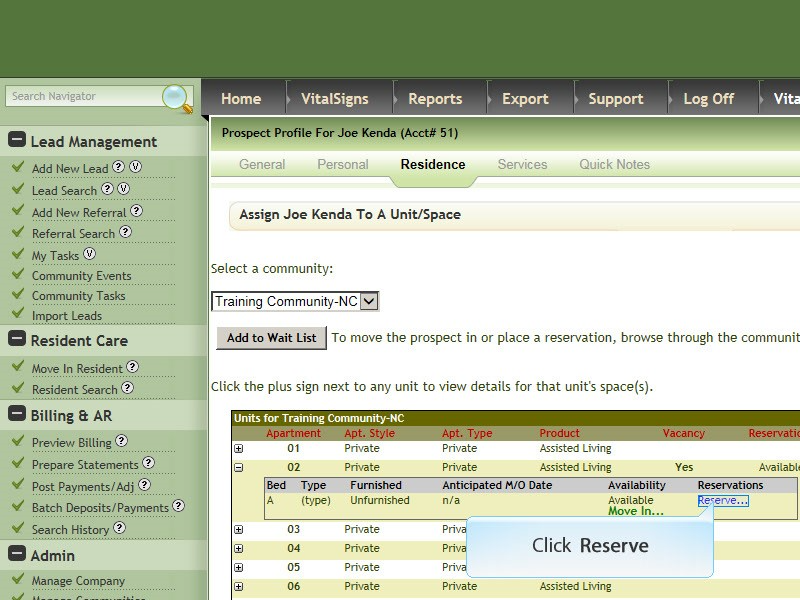
- Click on Reserve.
- The Anticipated Move in Date is required. Enter any other information that is applicable then click Submit.
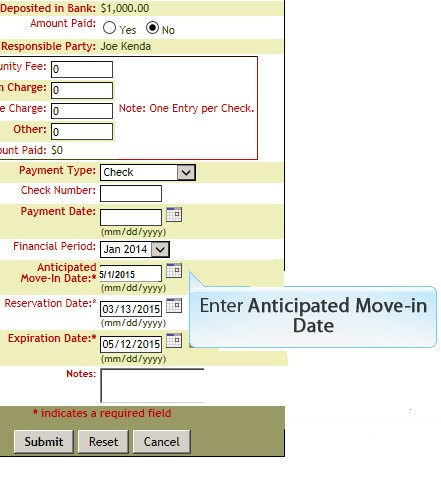
Important: The reservation will automatically be cancelled on the Expiration Date! Change the expiration date if you think there are possible delays.
Note:“Payments Deposited in Bank” represents any previous deposits that have been made that have been entered in a bank deposit in Vitals. These payments will not be deleted if the reservation is removed.
Note:“Payments NOT Deposited in Bank” represents any previous deposits that have been made that have NOT been entered in a bank deposit in Vitals. These payments WILL be deleted if the reservation is removed.
If you need to edit the reservation at some point. Access the prospect or resident profile, click Residence Tab, click Edit
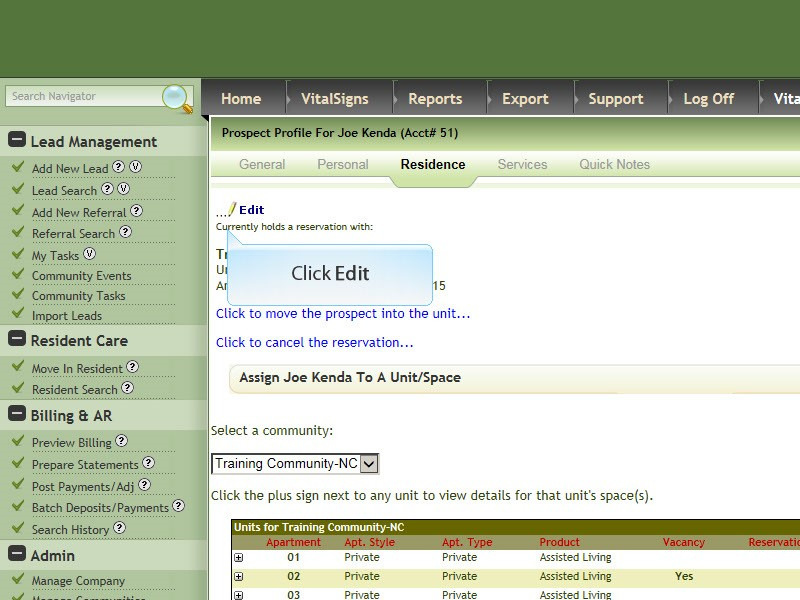
If you need to move in a resident or prospect that has a reservation, access the prospect or resident profile, click Residence Tab, click Click move the prospect into the unit…. ( or Click move the resident into the unit) then complete the information.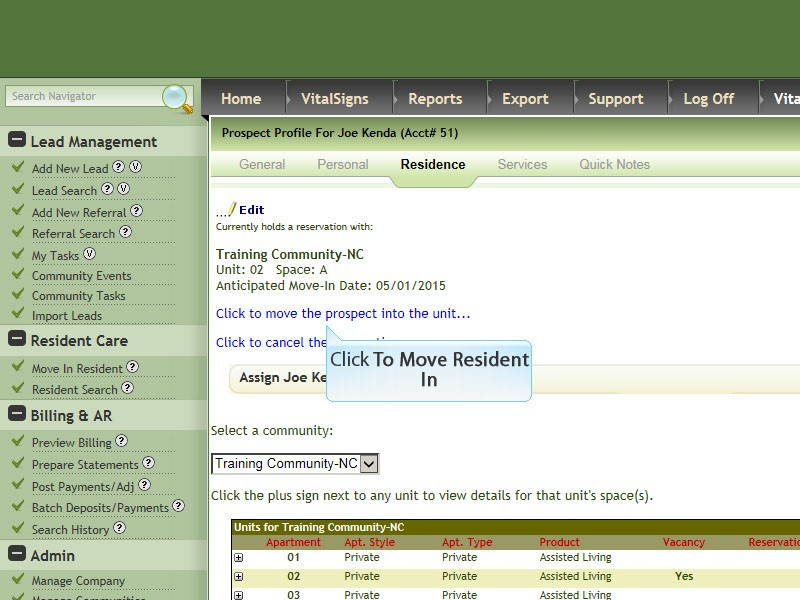
If you need to cancel the reservation access the prospect or resident profile, click Residence Tab, click Click to cancel the reservation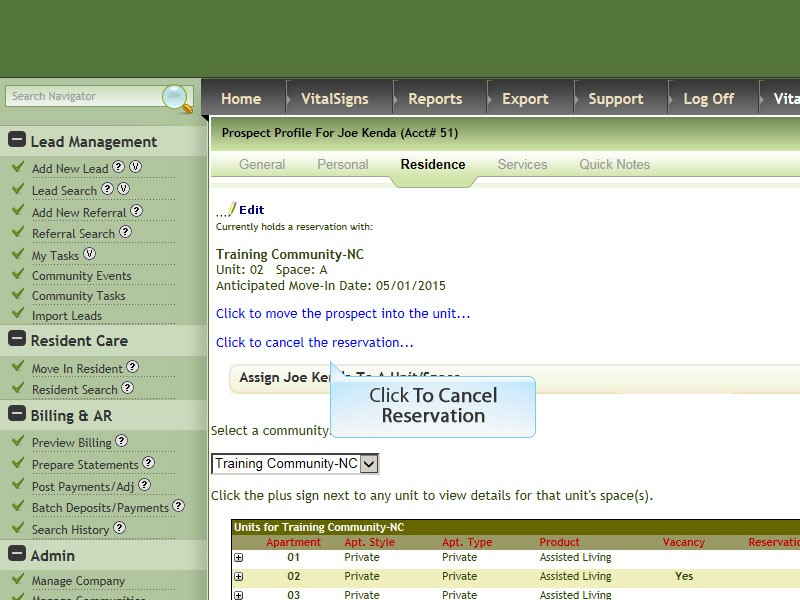
Note: You can tell if a prospect or resident has a reservation for an apartment by looking at the General page on their profile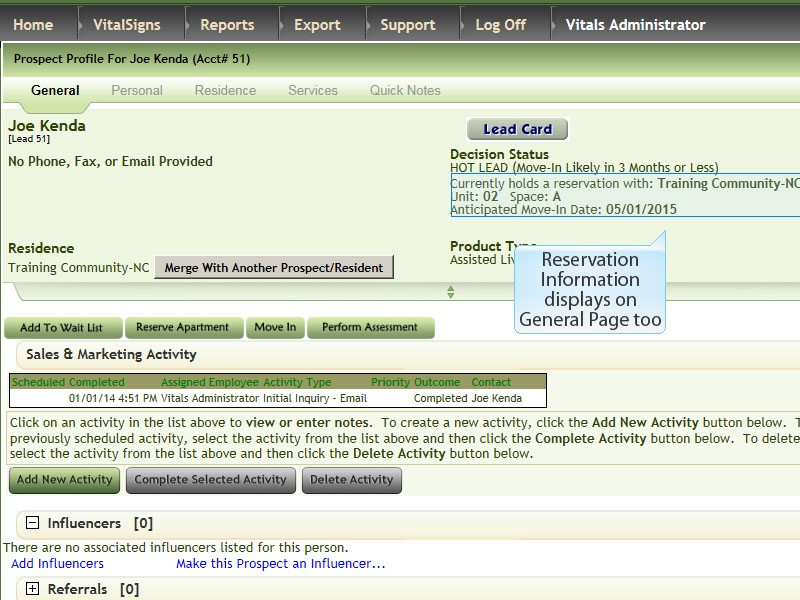
Was this article helpful?
That’s Great!
Thank you for your feedback
Sorry! We couldn't be helpful
Thank you for your feedback
Feedback sent
We appreciate your effort and will try to fix the article