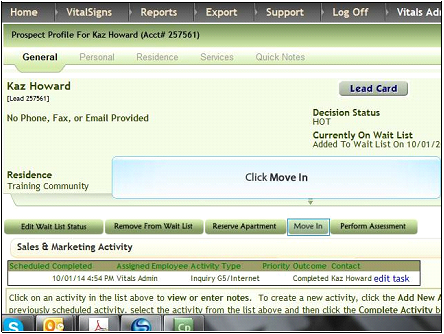
1. Access the prospect profile. Click Move In
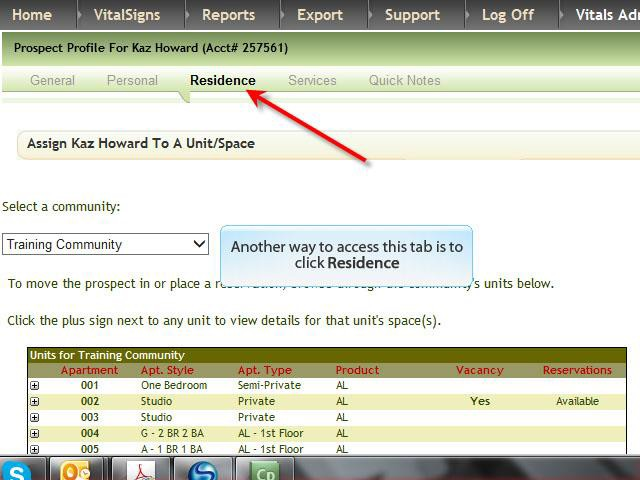
2. The step above will navigate to the Residence An alternative steps is to click the Residence tab rather than clicking Move In
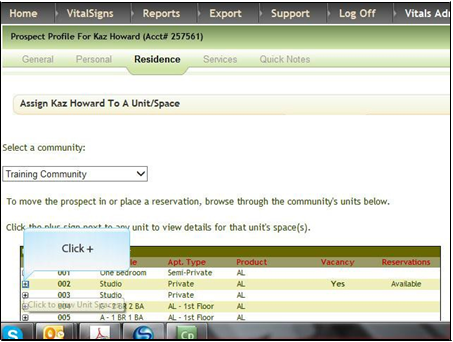
3. Click Plus sign adjacent to the room the user is moving into
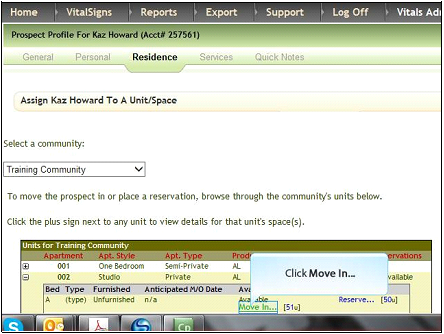
4. Click Move In
5. At a minimum, enter data in the required fields which are marked with an asterisk *. (Move in Date and Billing Start Date are 2 required fields.)
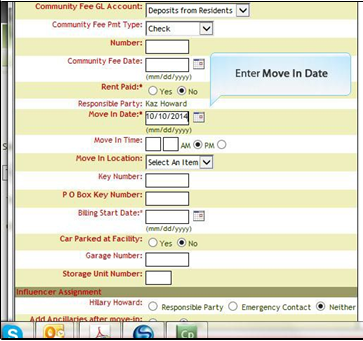
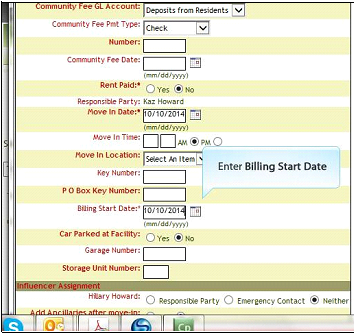
6. If an influencer is now going to be a Responsible Party and an Emergency Contact, click Responsible Party. Otherwise, select the Responsible Party, Emergency Contact or leave the default selection of Neither.
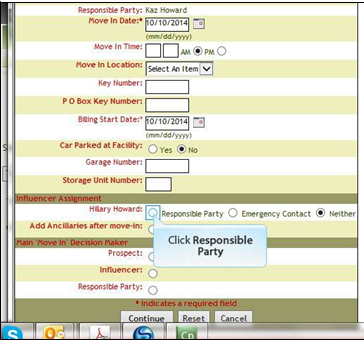
Note: A few of our customers have customized screens that require the user to enter the address of the responsible on the above screen. If that is the case for your company, select either Emergency Contact or Neither
7. Click Continue
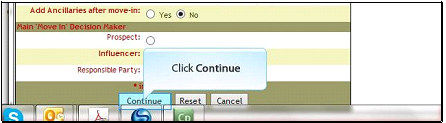
8. Click OK if this responsible party is going to assume all billing charges. Click Cancel if this responsible party is not going to assume all billing charges.
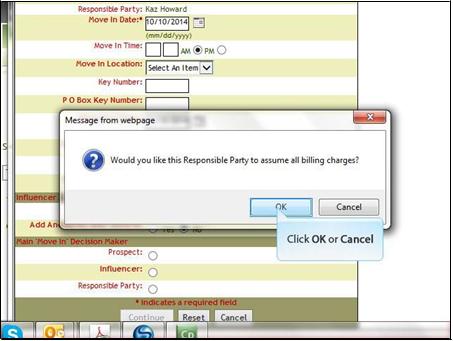
Note: Some of our customers may not have the above message. If that is the case go to the next screen.
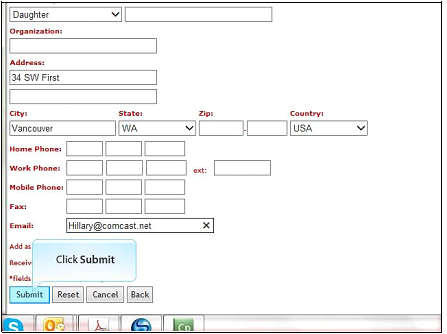
9. To make this responsible party an emergency contact or to edit this responsible party, click responsible parties’ name.
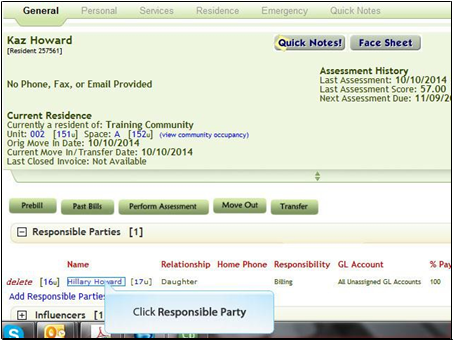
a. Update any data that needs to be changed.
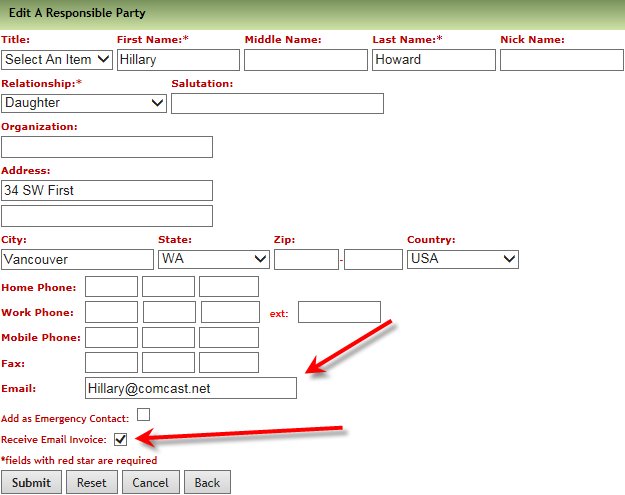
Note: If you want invoices to be emailed to the responsible party and if your company uses billing in Vitals enter email address and click Receive Email Invoice
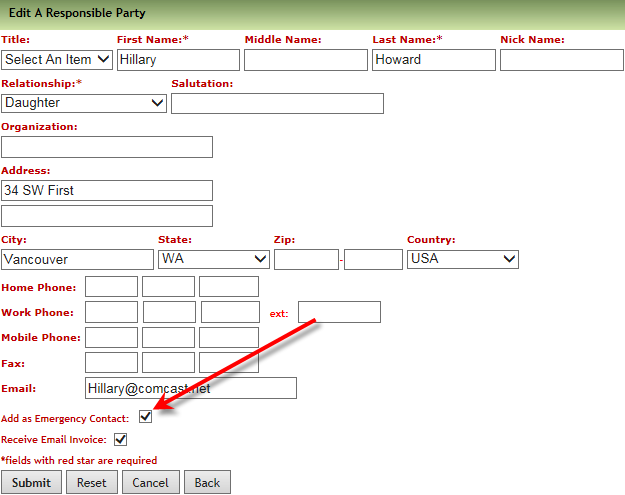
b. If this responsible party is also an emergency contact, click Add as Emergency Contact
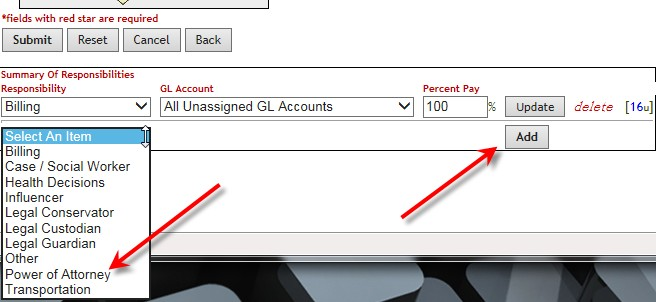
c. To add another responsibility click down arrow and select additional responsibility and click Add
d. Click Submit
What if a resident has double occupancy? (What if resident occupies two units?)
Occasionally a resident will occupy 2 apartments (or 2 beds within Vitals). These are the steps you will need to follow to have residents and occupancy to be counted properly in Vitals:
1. Add a new lead with the name of the resident. However, append the last name of the unit with "2nd Unit". (For example if your resident's name is "Jane Doe" enter the new lead with first name of "Jane" Last name as "Doe 2nd unit"
2. Move the resident into the second unit or bed
3. Enter the assessments for resident only on the profile that does not display 2nd unit (Jane Doe)
4. If the resident decides to only live in 1 apartment later, move out the resident with 2nd unit in the name (Jane Doe 2nd unit)
Was this article helpful?
That’s Great!
Thank you for your feedback
Sorry! We couldn't be helpful
Thank you for your feedback
Feedback sent
We appreciate your effort and will try to fix the article